Setting up a funnel
The fastest way to get a funnel out into the world is to start with a Smart funnel. Building from scratch with a Custom funnel is also an option when you want full control.
Option 1: Use a Smart funnel
- Tap Funnels at the bottom of the app, then tap the Smart tab.
- Browse the list and tap one that fits what you want to share.
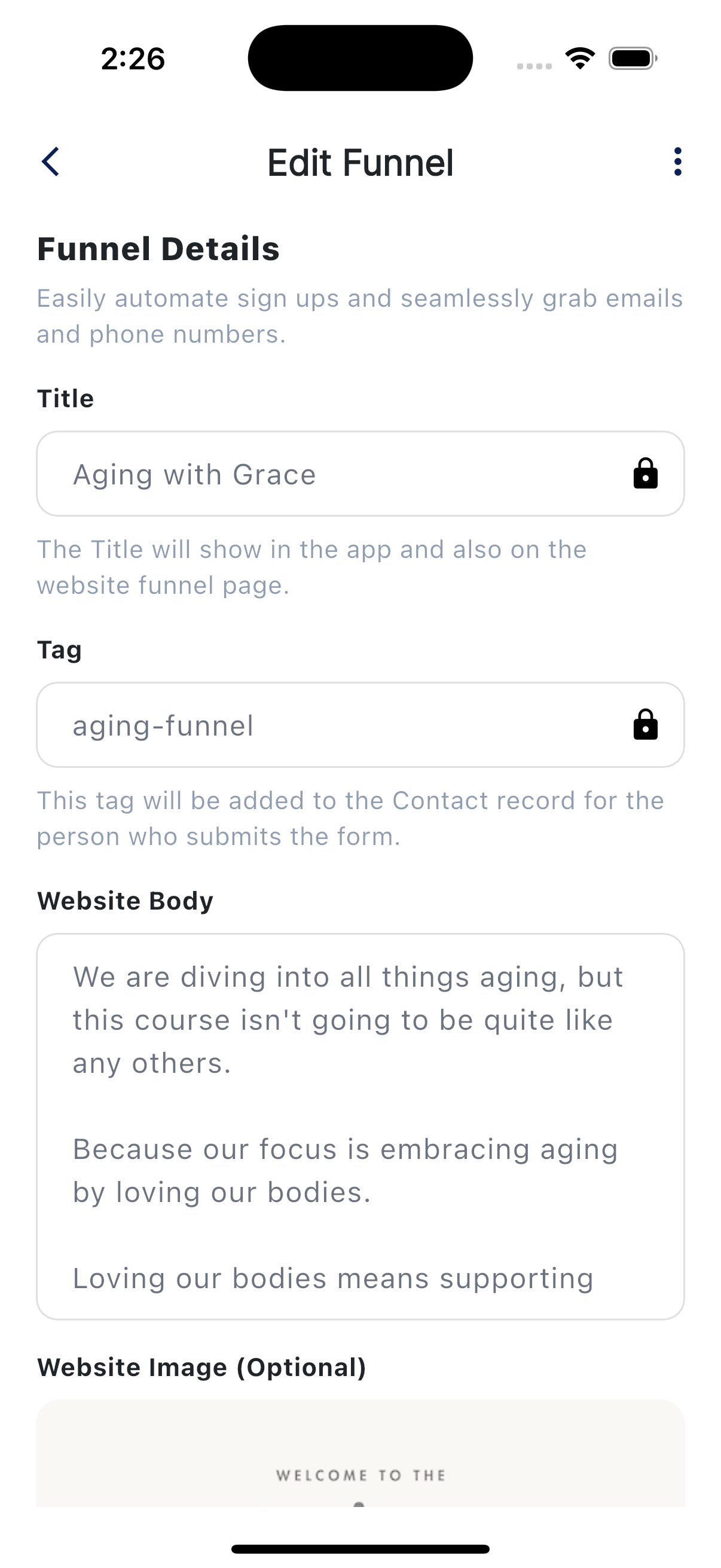
- Open the three-dot menu and choose Duplicate. Smart funnels are read-only templates; the copy opens in Edit Funnel and appears on your Custom tab.
- Customize the copy:
- The Title (the example placeholder is "Funnel Title * (e.g. Free Wellness Guide)")
- The Website Body copy (the description on the page)
- The header image if you want a different one
- The Tag that gets applied to anyone who signs up
- The email subject and body if you want a follow-up email; fill in both fields
- A resource if you want to include its link in the email body
- A Campaign if you want the signup to start a Custom or Drip sequence
- Save, then return to Funnels → Custom and turn on the copied funnel. Copies start inactive, so check that its toggle is on before sharing the link.
Option 2: Build a Custom funnel
- Tap Funnels → Custom, then tap + (tooltip "Add Funnel").
- The Create Funnel screen opens.
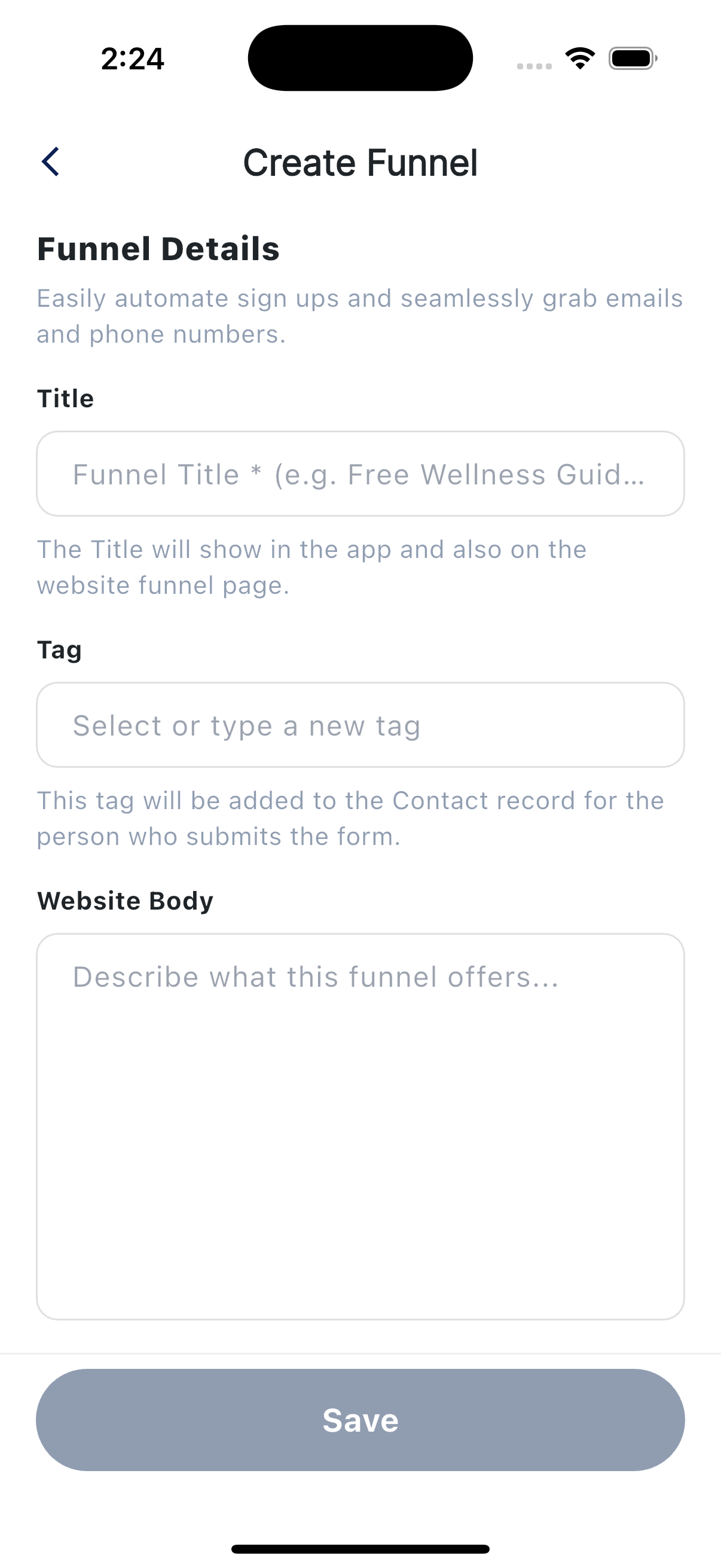
- Fill out the Funnel Details section:
- Title. The big headline at the top of the page. Helper text reads "The Title will show in the app and also on the website funnel page."
- Website Body. Your description or pitch (placeholder "Describe what this funnel offers...").
- Tag. A short label that gets added to anyone who signs up (placeholder "Select or type a new tag").
- Header image. Optional but it makes a big difference.
- Email subject (placeholder "Enter email subject line") and Email Body. Fill in both if you want a follow-up email. The email is queued after an eligible signup; delivery is not immediate or guaranteed by the form submission.
- Resource. Optional. To include its link in the email, select the resource and put
{{resourceLink}}where you want the link in Email Body. - Campaign. Optional. Pick one of your Custom or Drip campaigns to start it when an eligible person signs up.
- Save. New Custom funnels start active. Check the funnel card before sharing its link.
Sharing your funnel
On the funnel card, tap Copy Page Link to copy the form link. Share it anywhere: Instagram bio, in a text, in your email signature, in a class.
A few good practices:
- Use a memorable title. It's what people see first.
- Test it yourself. Open your funnel from your own phone, submit the form with contact details you control, and check that the contact appears. If you configured an email or campaign, check its send status separately.
- Explain the follow-up. If you connected a text campaign, tell visitors they may receive texts after signing up. If you set an email follow-up, explain what it contains.
Pairing with a Drip campaign
A funnel records the signup and can queue an optional email. It does not send a standalone auto-reply text. For a text or email sequence, pick a Drip or Custom campaign in the funnel's Campaign field. An eligible signup starts that campaign; actual sending still depends on the account and contact being ready to send. Smart campaigns are not offered in this picker.
Editing later
You can edit a Custom funnel any time. Changes show up immediately for new visitors. People who already signed up don't get re-messaged.