Reading and replying in the Inbox
The Inbox is where you read and reply to text and email conversations with your contacts. It also has a separate view for text conversations from people who have opted out.
Opening the Inbox
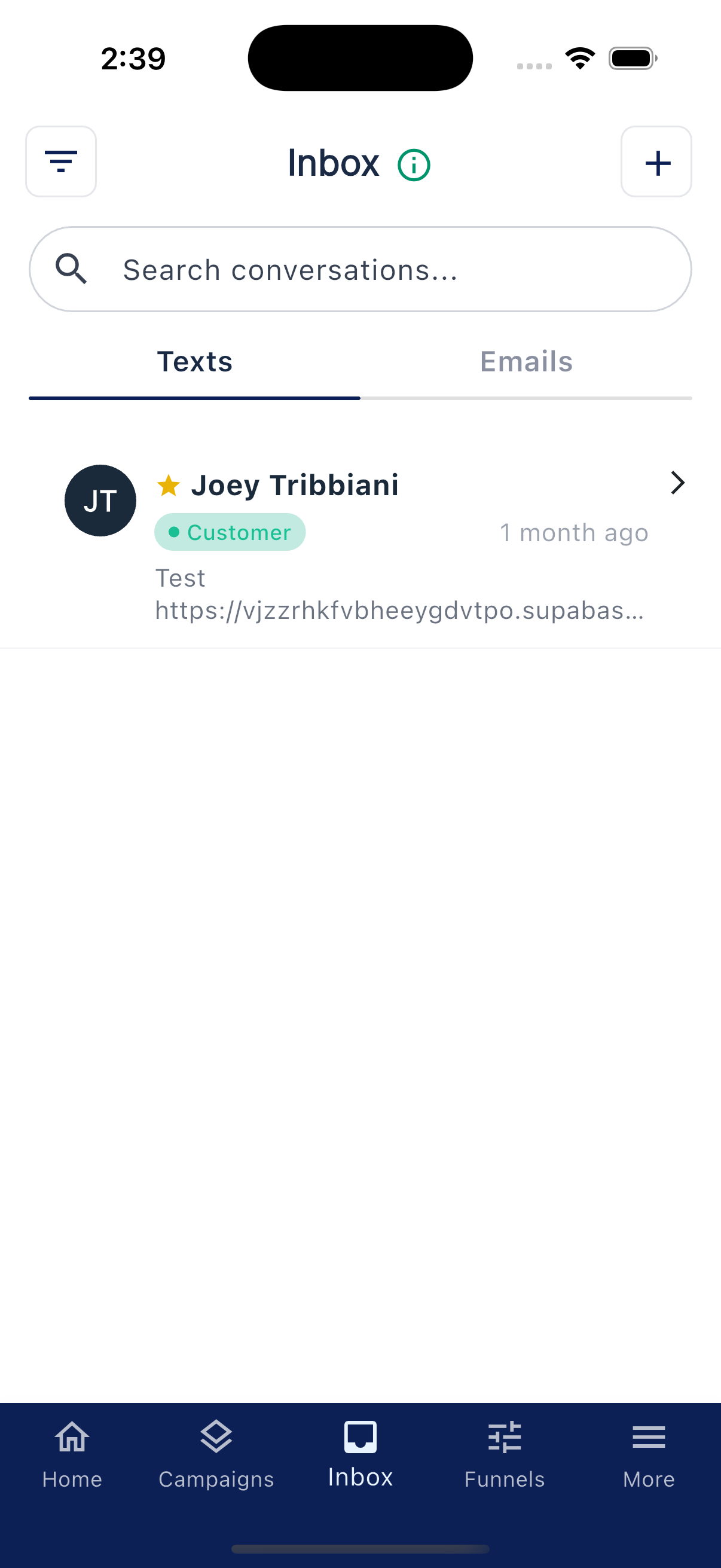
Tap Inbox at the bottom of the app. If you have anything unread, you'll see a small red dot on the tab.
At the top of the screen there are two tabs:
- Texts
- Emails
Tap a conversation to open it.
Search and filters
The search bar at the top says "Search conversations...". Type a contact's name, their member ID, or part of a message and the list narrows down.
In the top left of the Inbox, above the search bar, there's a filter button. Tap it and you can choose:
- All. The normal conversation list.
- Unread. Conversations with unread messages.
- Starred. Conversations you've starred for follow-up.
- Stops (Texts only). Text conversations from numbers that have opted out. These are hidden from the normal Texts list; the Emails tab is hidden while Stops is selected.
When a filter is active, the button turns green and a small badge shows which filter is on.
Replying
Open a conversation and you'll see the back-and-forth, with your messages on one side and theirs on the other and timestamps next to each. Type at the bottom and tap send.
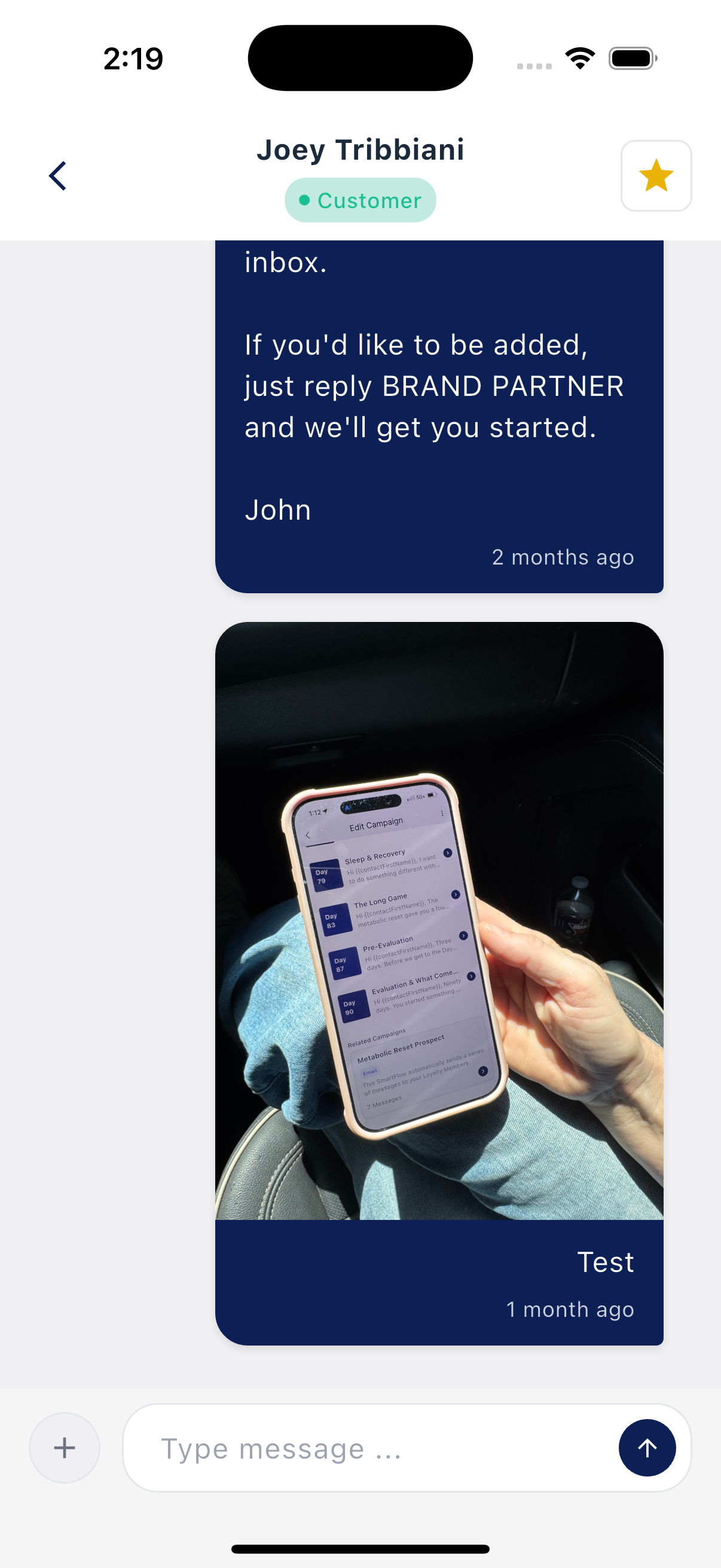
Replies use the same channel as the conversation: texts cost SMS credits, emails cost email credits.
Attaching content to a reply
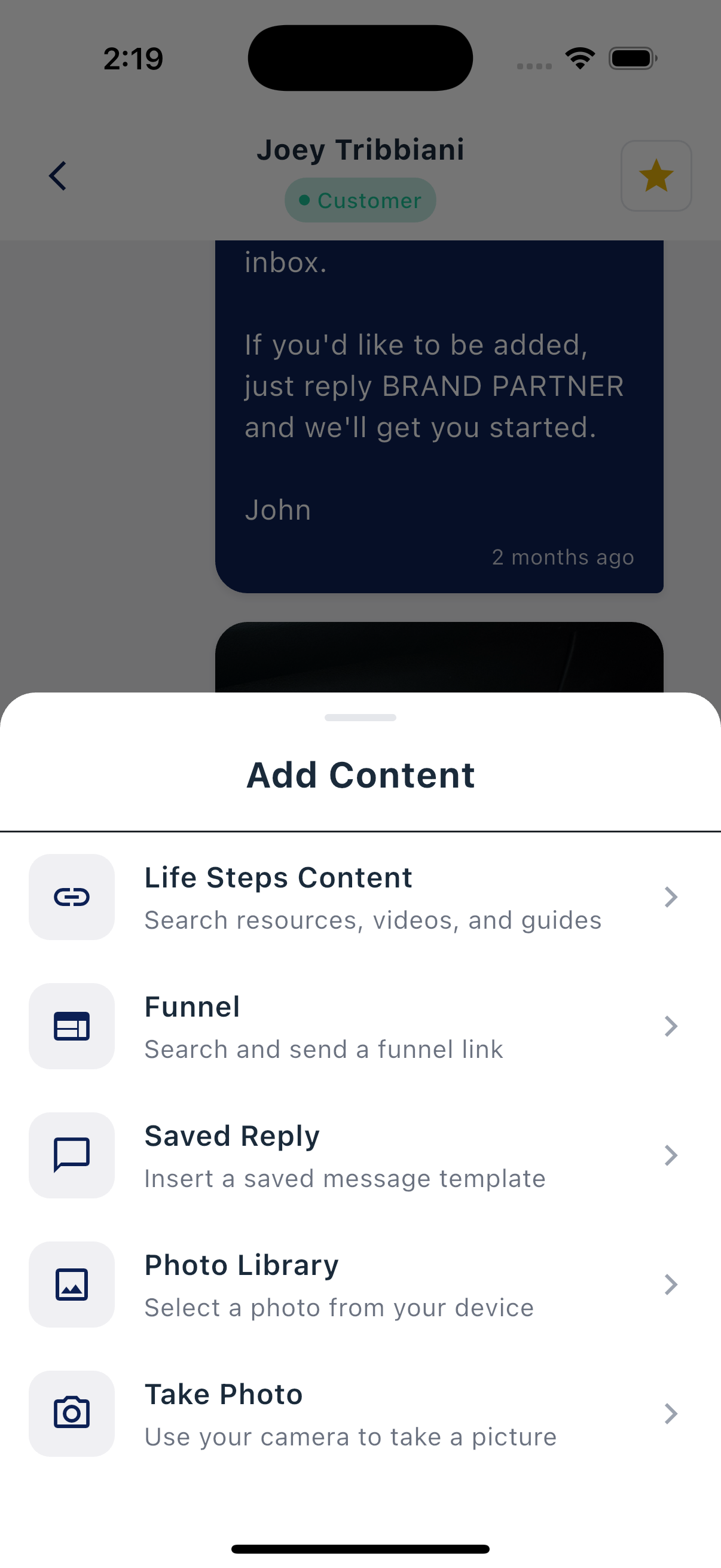
Tap the + button in the message bar to open the Add Content sheet. From there you can attach:
- Life Steps Content. Search resources, videos, and guides.
- Funnel. Search for a funnel and drop its link into the message.
- Saved Reply. Insert one of your saved message templates.
- Photo Library. Pick a photo from your device.
- Take Photo. Use your camera to capture one.
Whatever you pick gets added to the message you're typing, so you can edit it before you send.
If you start typing and then leave, your draft saves automatically. When you come back, it's still there waiting.
Coaching prompts
Sometimes inside a conversation you'll see a centered blue coaching prompt, a suggestion for what you might say next. You can use it, edit it, or ignore it.
When a reply comes in with a recognized keyword, an auto-reply is sent on your behalf so the contact gets an immediate response.
Starring
Tap the star icon at the top of any conversation to mark it for follow-up. Then in the Inbox, filter by Starred to clean up your follow-ups in one sitting.
Saved Replies
For things you find yourself typing over and over (a class invite, a reorder reminder, a friendly check-in), set them up once as Saved Replies and reuse them in any conversation.
Tap More → Saved Replies to add one. The screen has a search bar (placeholder "Search...") and a + button (tooltip "Add Saved Reply") at the top.
A few things to know
- Each contact has separate threads. One in Texts and one in Emails. Texting and emailing the same person are two different conversations.
- Empty inbox? You'll see "No conversations yet" on the Texts tab or "No emails yet" on the Emails tab.
- Starting a new conversation. Tap the + in the top right (tooltip "New Conversation") to send a message to anyone in your contacts.