Using saved replies
Saved replies are reusable answers to questions you find yourself typing over and over. Create one once, then insert it while composing an Inbox reply.
Viewing your saved replies
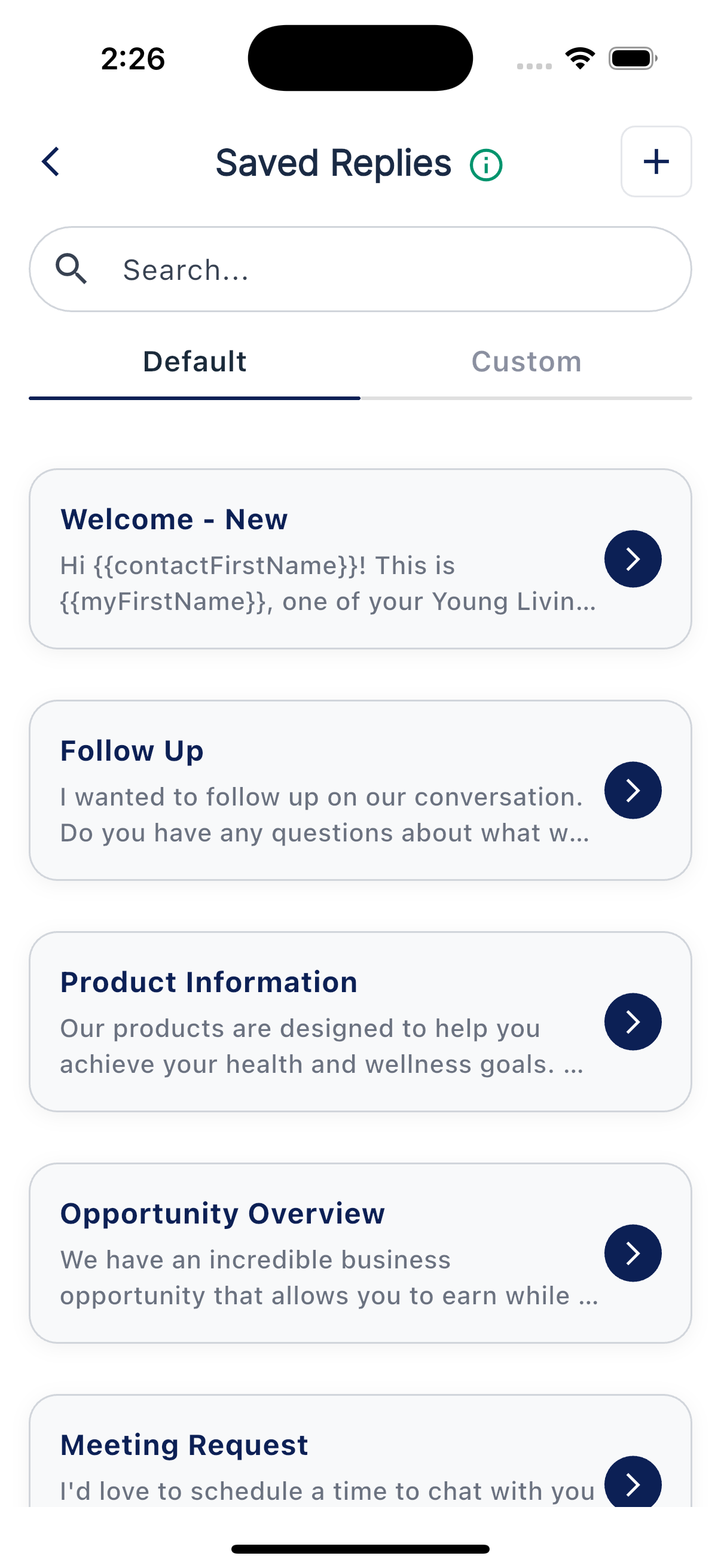
Open More → Saved Replies. The Default tab contains built-in replies you can view and use; the Custom tab contains replies you created. Each row shows a title and a content preview. The newest replies appear first within each tab.
Creating a saved reply
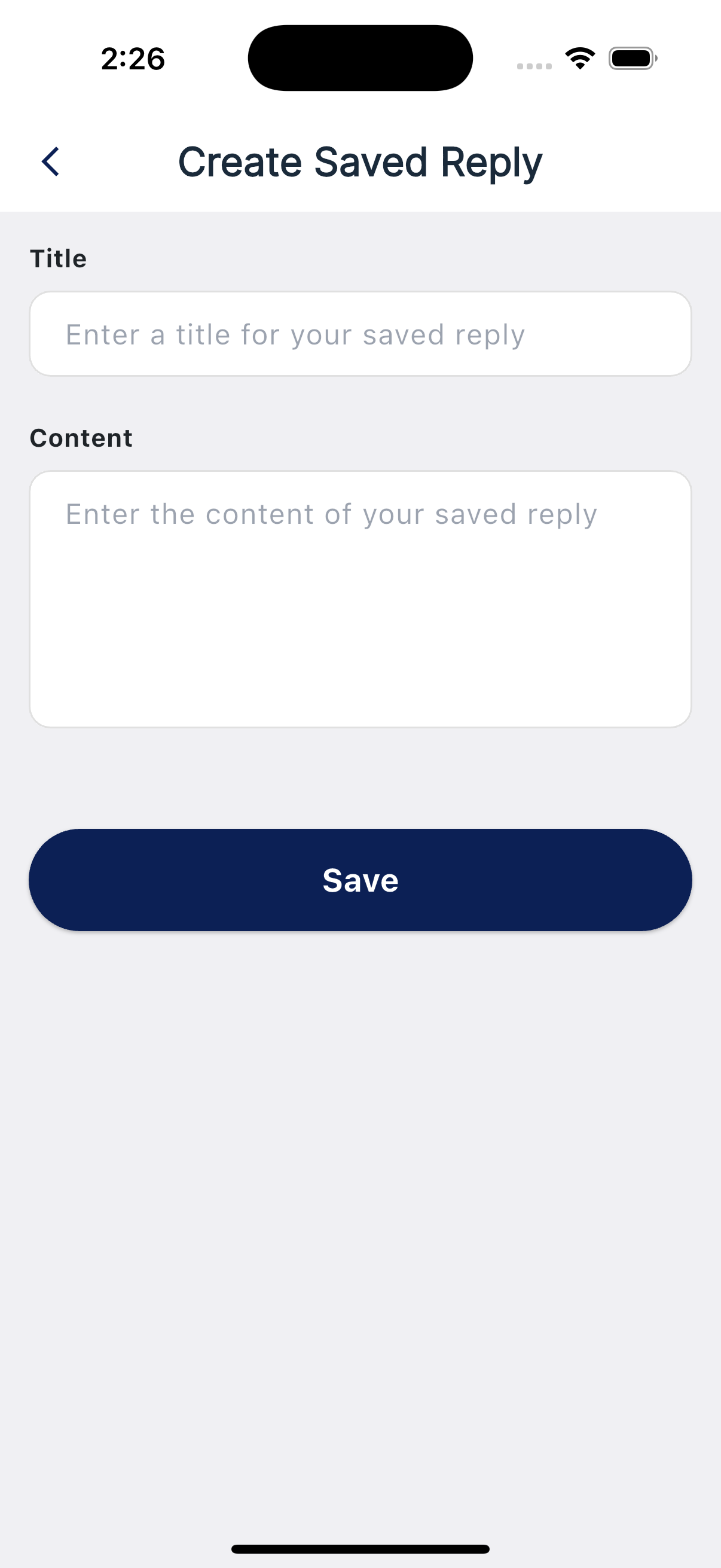
Tap + in the top-right corner, give your reply a title, and enter its text in Content. Tap Save to add it to the Custom tab. An active subscription is required to add a saved reply.
Editing a saved reply
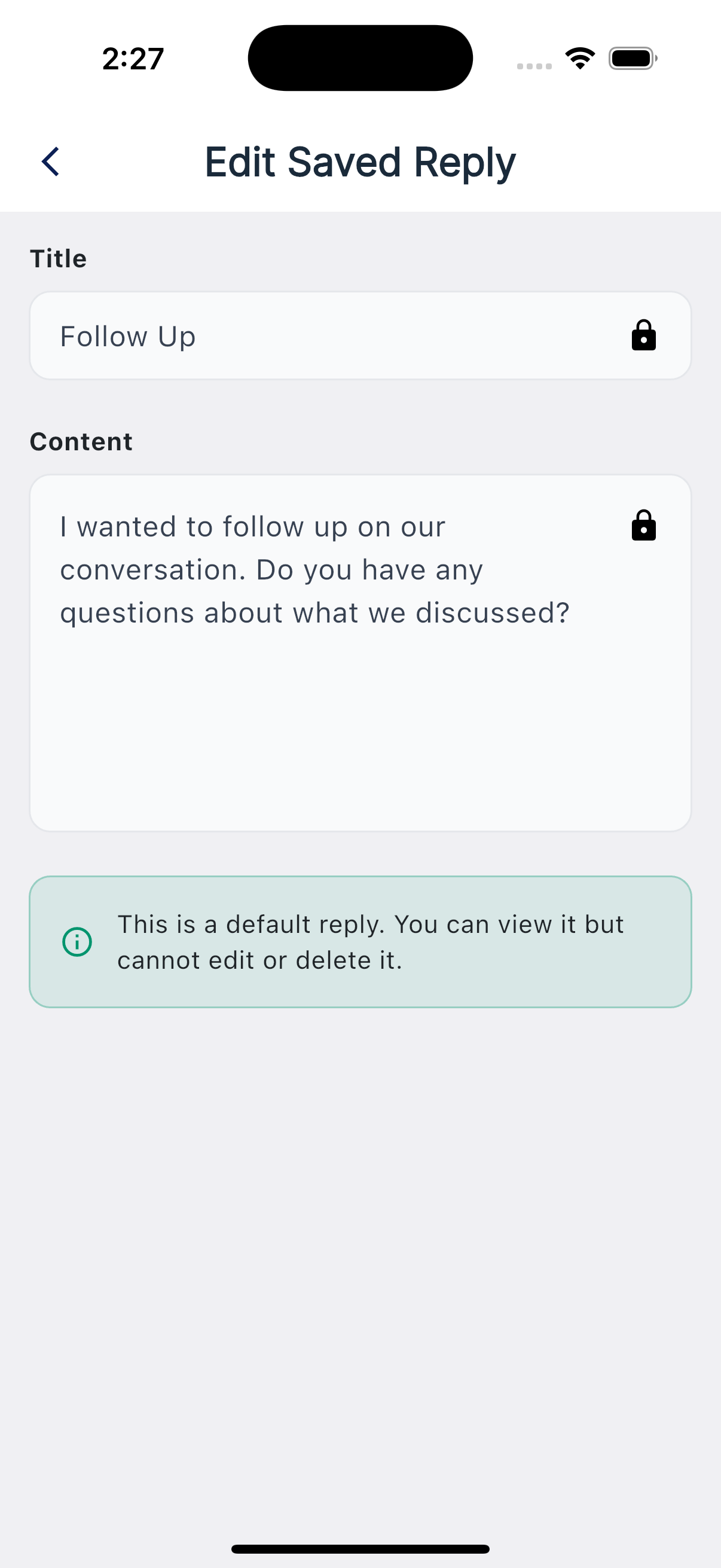
Tap a Custom reply to edit its Title or Content. Save changes for future use. To delete a Custom reply, tap the delete icon in the editor's top-right corner. Default replies can be viewed and inserted, but cannot be edited or deleted. Changing a saved reply does not change messages already sent.
Using one from the inbox
In an Inbox conversation, tap + beside the message box, choose Saved Reply, then select one. Its text is inserted into your draft; personalization tags may fill in for the current contact. Review and edit the draft before sending. You can insert another saved reply if you need more than one answer.