Editing messages and adding personalization
Pre-built messages are a fine starting point, but they sound a lot better when they sound like you. Here's how to make them yours.
Editing a message
- Open a campaign from the Campaigns tab.
- Tap the message (step) you want to change. The Edit Message screen opens.
- You'll see fields for the type, the timing, and the content of the message.
- Edit the wording.
- Tap Save.
Save the edit before the campaign's next send. Messages already sent keep their original wording. Review upcoming sends after editing, especially if a send is close to its scheduled time.
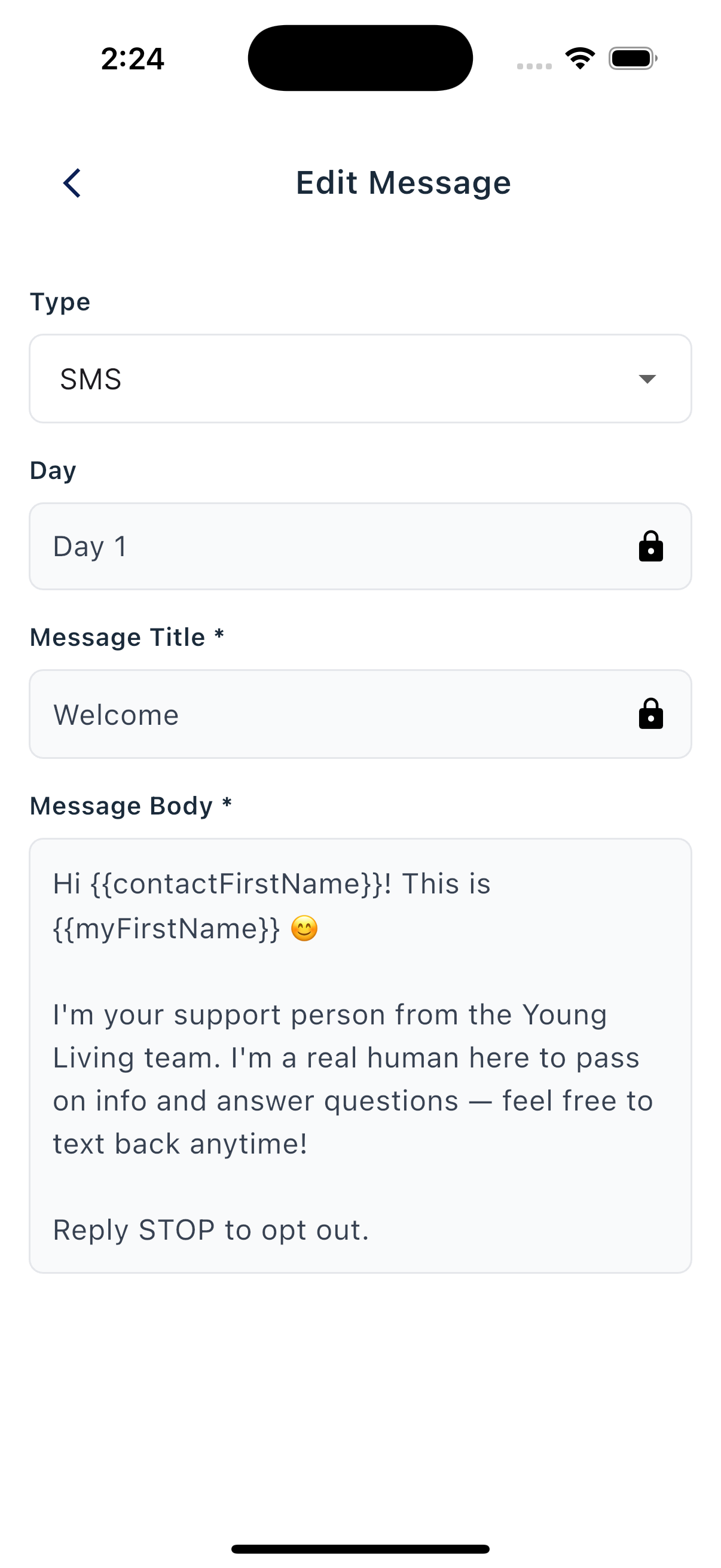
What's on the Edit Message screen
- Type. A choice of SMS or Email.
- Day. How many days into the campaign this step sends. Choose a day or set a specific date.
- Send Date. Use this instead of Day if you want to send on a fixed calendar date.
- Message Title *. Your internal name for the step (placeholder "Enter title here...").
- Subject Line *. Only shown for emails (placeholder "Enter email subject...").
- Message Body *. The actual message that goes out (placeholder "Enter your message here...").
- Personalized Text. Some steps show a separate field for text you can supply for the
{{personalizedText}}token. When it appears, save that text with Save Personalized Text. This can also be available on a locked template step. - Resource (Optional). Attach a Life Steps resource if relevant.
If a step is locked (some Smart campaign steps are read-only), you can still use it as-is. To customize a locked campaign top to bottom, duplicate it as a Custom campaign first.
Personalization: the Add Customization button
Customizations are reusable tags that the app replaces with values when a message sends.
On an editable Edit Message screen, tap Add Customization and choose a tag. The app inserts it into the message body at your cursor. The button is unavailable on a locked step; a separate Personalized Text field may still be available there.
When the message sends, your customization is replaced with the right value for each contact: their first name, your first name, whatever you set up.
This button inserts into the message body, even if the email subject field has focus. If you need a supported tag in a subject line or funnel field, enter it in that field and check a test send before using it broadly.
Tips
- Personalize the greeting. Even just dropping in a contact's first name in the opener makes a big difference.
- Don't overdo it. Five different customizations in one short text starts to feel like a mass email instead of a real message.
- Test on yourself. Add yourself as a contact, put yourself in a small test group, and run the campaign. It's the fastest way to spot a typo or a weird-looking line break.
Keep what works
The pre-written messages are short, friendly, and end with a question. That's on purpose. It invites people to reply. When you edit, try to keep that pattern. Replacing a question with a statement is the most common reason a tweaked campaign stops getting responses.