Turning on a campaign
The fastest way to start sending is to turn on a Smart campaign. Here's how.
Step by step
- Tap Campaigns at the bottom of the app.
- Make sure you're on the Smart tab.
- Find the campaign you want. Each one has a toggle switch in the top right corner of its card.
- Flip the toggle on. The campaign is now live.
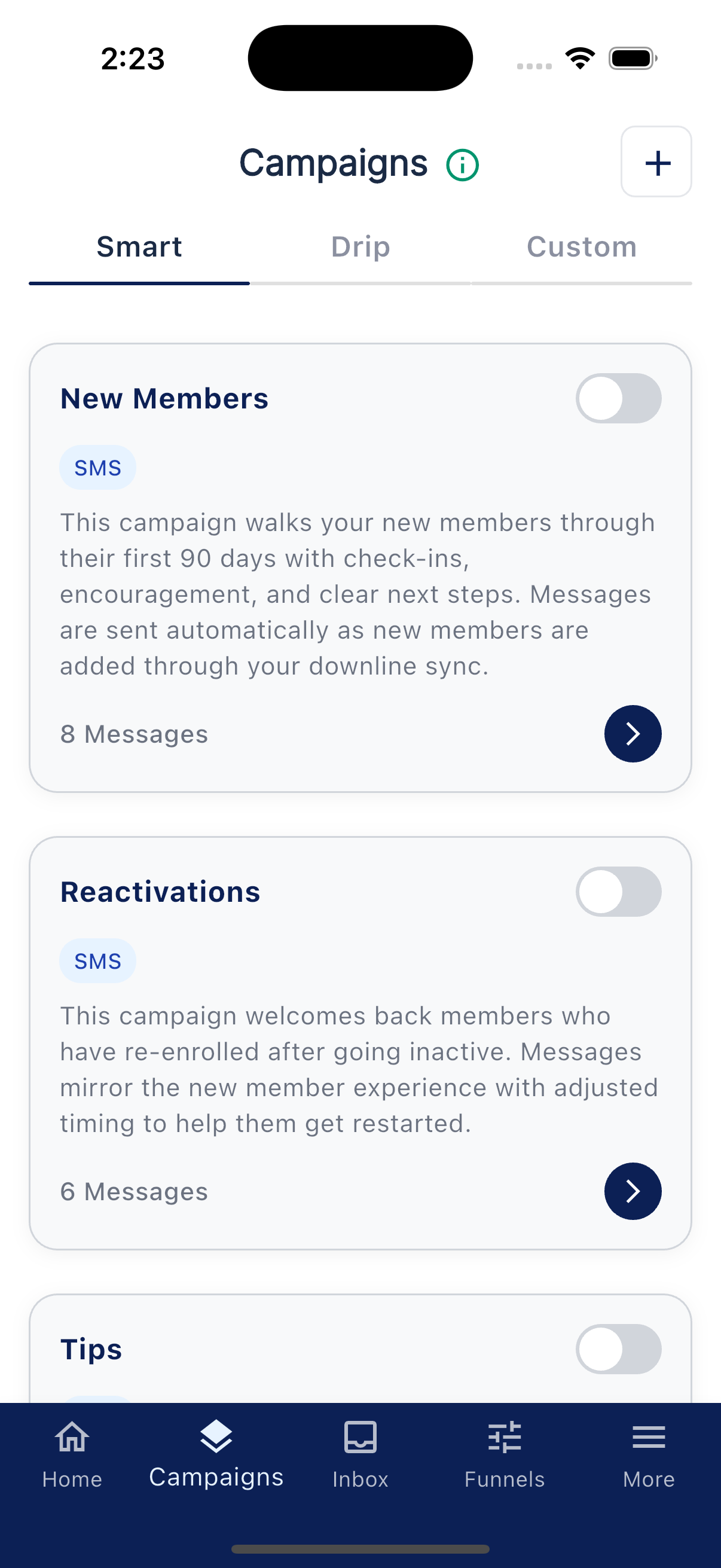
For an ordinary Smart campaign, the toggle on the list is its on and off switch. Open a campaign first if you want to review its messages.
A special step for Welcome
Your account's Welcome starts off so you can review its message first. If you see it on the Smart tab, it is a one-time Welcome: turn it on after reviewing it and it will be scheduled for the next eligible send. Other proactive campaigns and funnels wait until that Welcome finishes. The Welcome then disappears from the campaign list. If later filter changes add people who have not received it, you may be asked to review a new Welcome.
If your Welcome appears under Custom, your account uses the earlier setup. Review it and turn it on there. It can continue reaching newly eligible members, while skipping people your account already welcomed.
Welcome needs an active subscription and an approved texting number before you can turn it on. If it is on but has not sent, also check its scheduled date and message credits. Writing your welcome message has the full walkthrough.
Reading the messages first
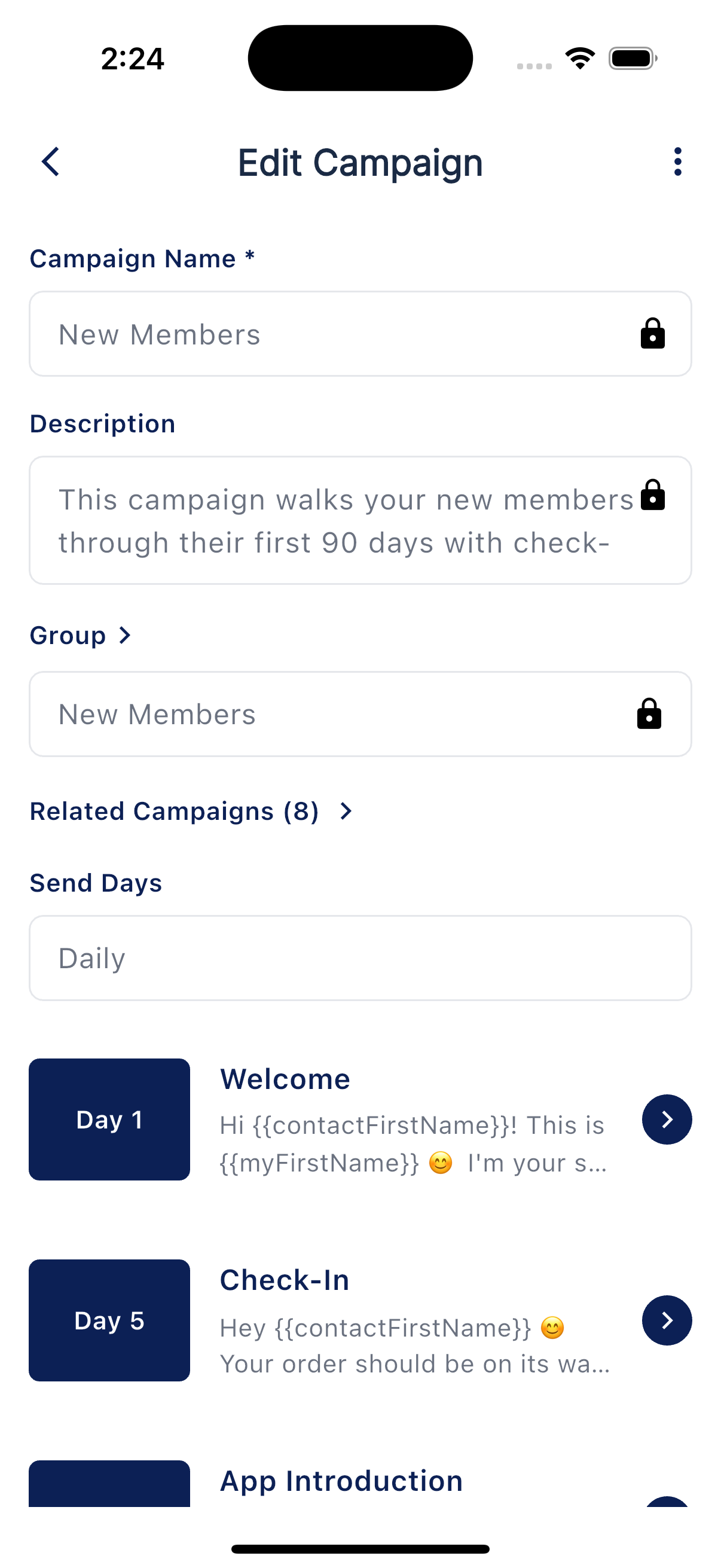
Before you turn a campaign on, you may want to see what it sends. Tap a campaign to open it.
You'll see its messages laid out as a stack of cards. Each card has a Day badge in the corner (Day 1, Day 5, and so on), along with the message title and body. Read through them, and tap any card to make changes. (See Editing messages and adding personalization.) When you're happy, head back to the list and flip the toggle.
Duplicating or deleting a campaign
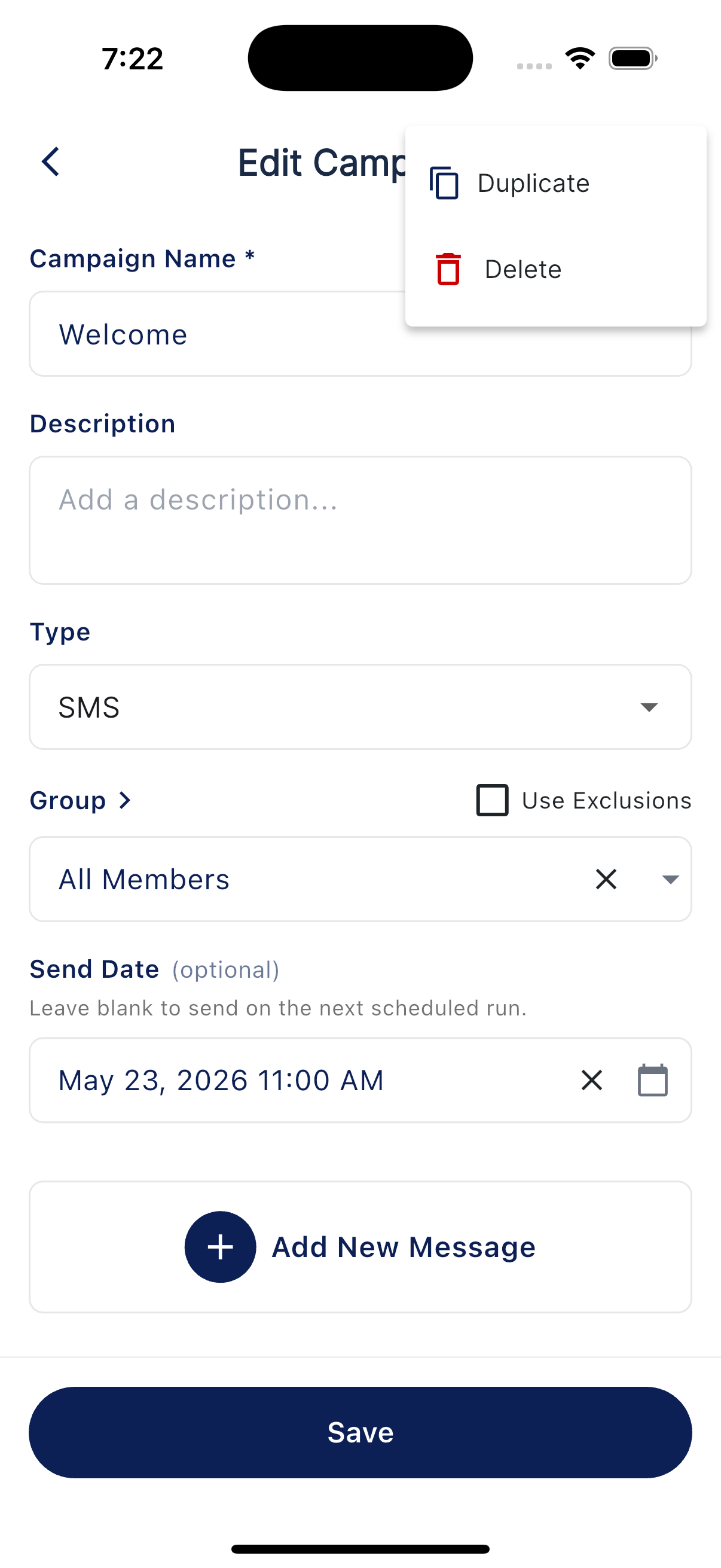
For an ordinary campaign, open it and tap the menu in the top right to Duplicate or Delete it. Duplicating is handy when you want your own copy of a built-in campaign to edit freely. Welcome is managed by Simple Downline and does not use these actions.
What happens next for an ordinary multi-message campaign
- Anyone who fits an ordinary Smart campaign, and hasn't been through it before, becomes eligible for the first message at its scheduled send.
- A few days later (the number on the Day badge), they get the next one.
- New people who fit the campaign in the future automatically start at message 1.
You'll see each send appear under More → Sends, and any replies show up in your Inbox.
Drip and Custom campaigns
You turn them on the same way, by flipping the toggle on the list. The difference is what kicks off the campaign:
- Drip starts when someone signs up through a funnel or a class.
- Custom runs against the group you chose, either once or on a repeating schedule you set.
Pausing a campaign
Toggle the campaign off to stop it without losing it. People mid-sequence stop receiving the rest. Toggling it back on later picks up where it left off. Nobody gets re-sent the messages they already received.
Smart vs. one-time sends
Ordinary Smart campaigns keep checking for new eligible contacts. A newer account's one-time Welcome is the exception: it finishes and disappears after its reviewed send.
If you just want to send a single message to a group right now, build a one-step Custom campaign and run it once. That's how you send a one-time blast. There's no separate broadcast feature.