Organizing contacts with groups
Groups bundle contacts together so you can find and message the right slice of your downline without picking people one at a time. Some groups build themselves from your data, and some you create by hand.
The three kinds of groups
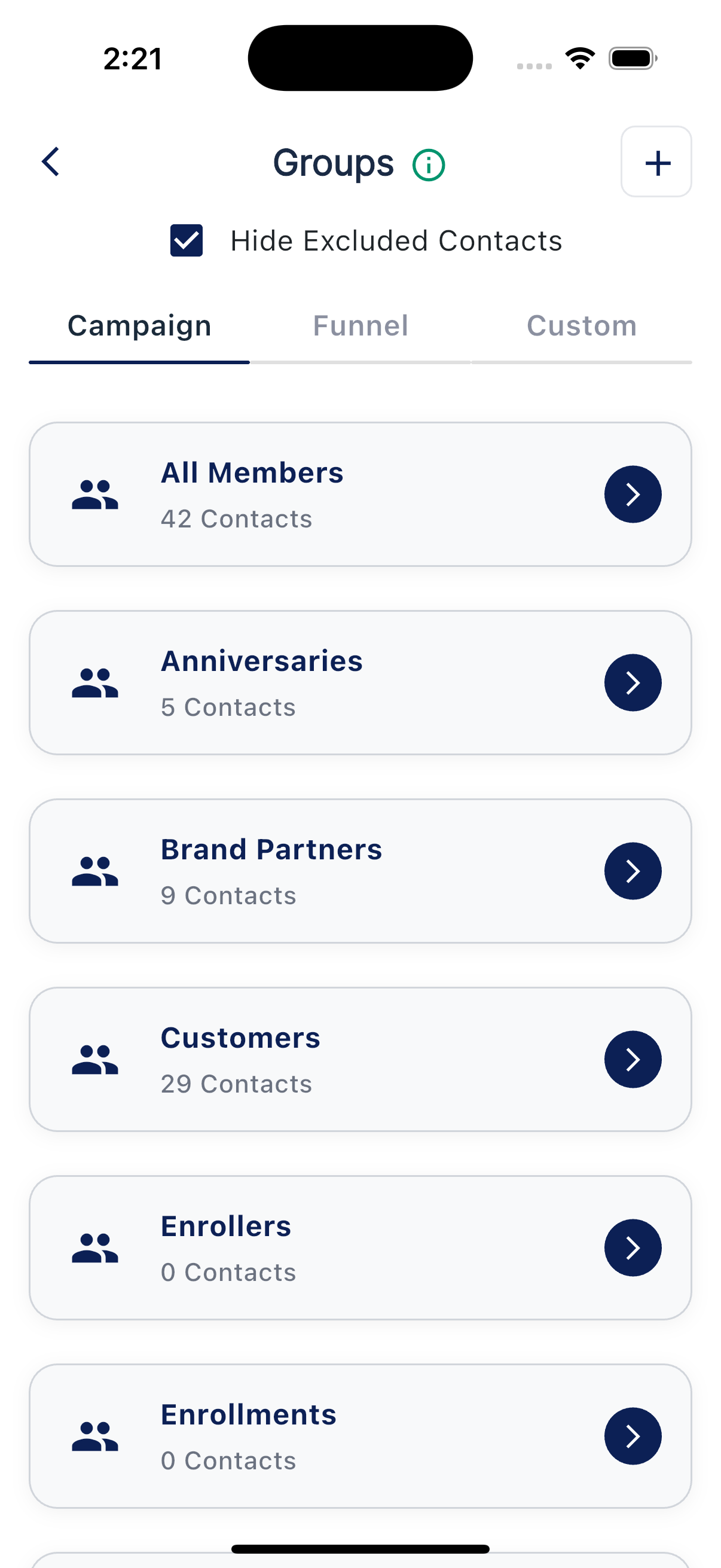
Open More, then Groups. The screen has three tabs:
- Campaign groups are created automatically from your downline sync, based on data like Loyalty members, Brand Partners, and new rank ups. They connect directly to SmartFlow campaigns.
- Funnel groups collect people who sign up through one of your funnel landing pages. When someone fills out a form, they're added to the matching group automatically.
- Custom groups are ones you build yourself, which are handy for organizing around events, local meetups, or anything specific to your team.
Each row shows the group's name and how many contacts are in it.
Creating a custom group
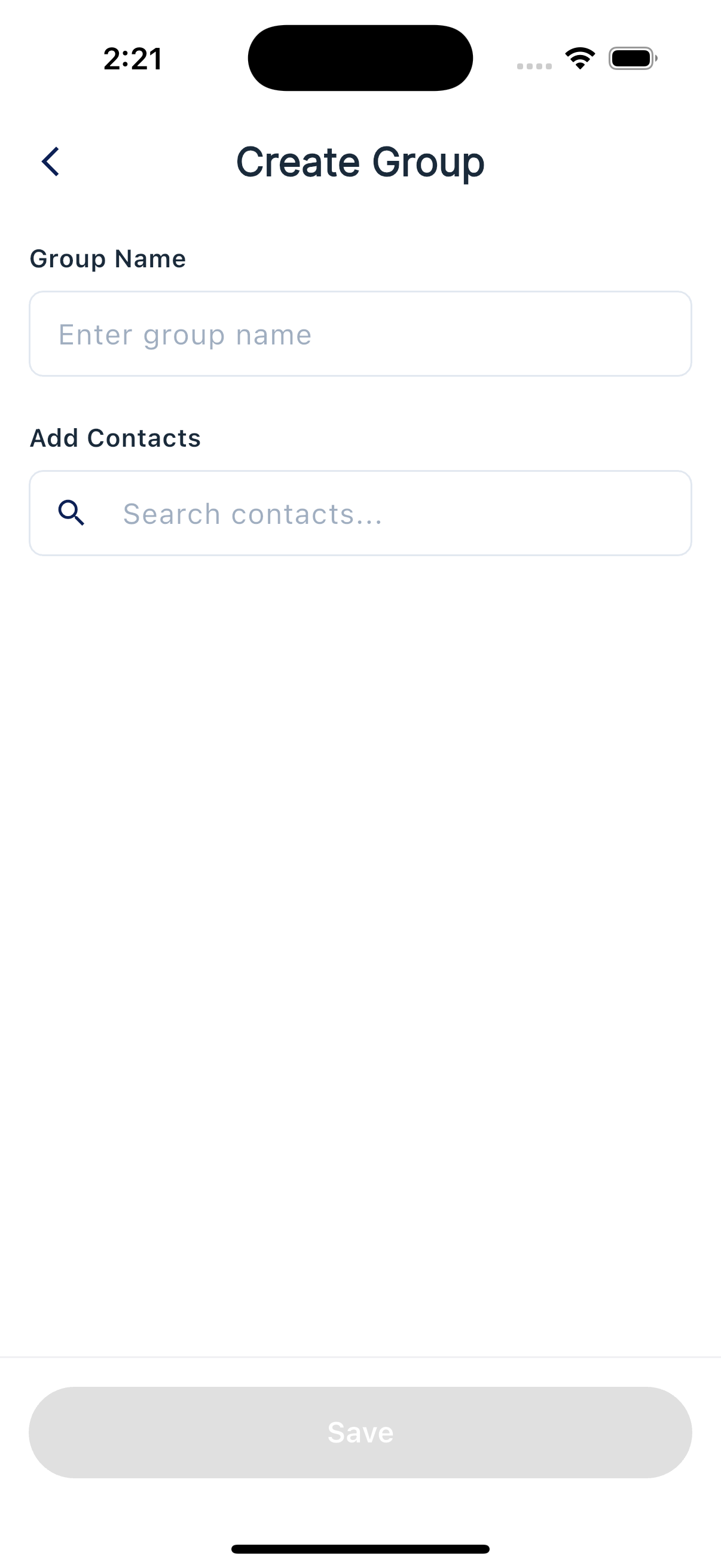
Tap the + in the top right to open the Create Group screen. Enter a Group Name, then use the search to find and add contacts. Tap Save when you're done. You can also create a custom group from the Contacts screen by searching and saving your results as a new group.
Looking inside a group
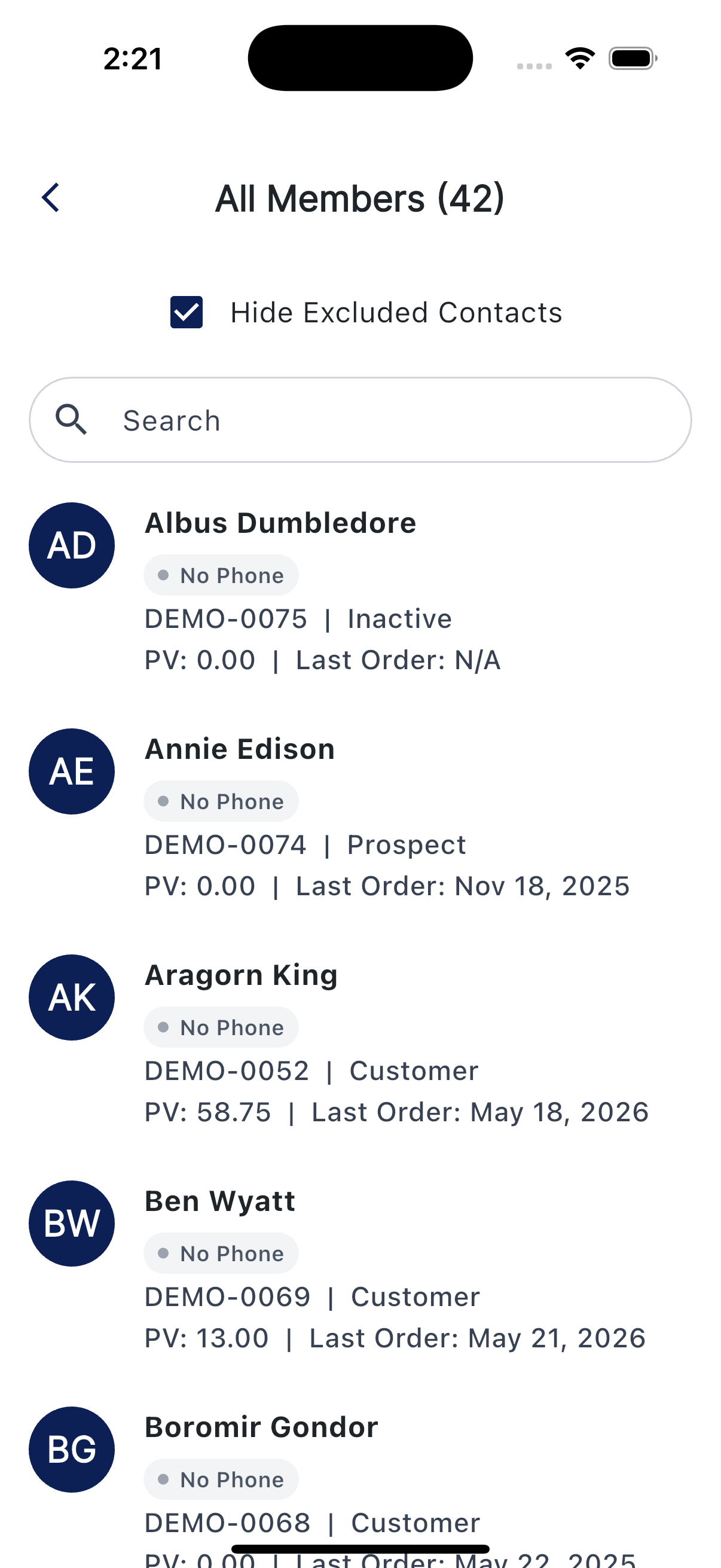
Tap a group to open it. The top shows the group's name and contact count, followed by a search bar, a Hide Excluded Contacts checkbox, and the list of members. For custom groups, the overflow menu in the top right offers Edit and Delete.