Using filters to control who you message
Filters control which downline legs and members are included in campaign audiences. They help you leave out people who should hear from you personally.
Why filters matter
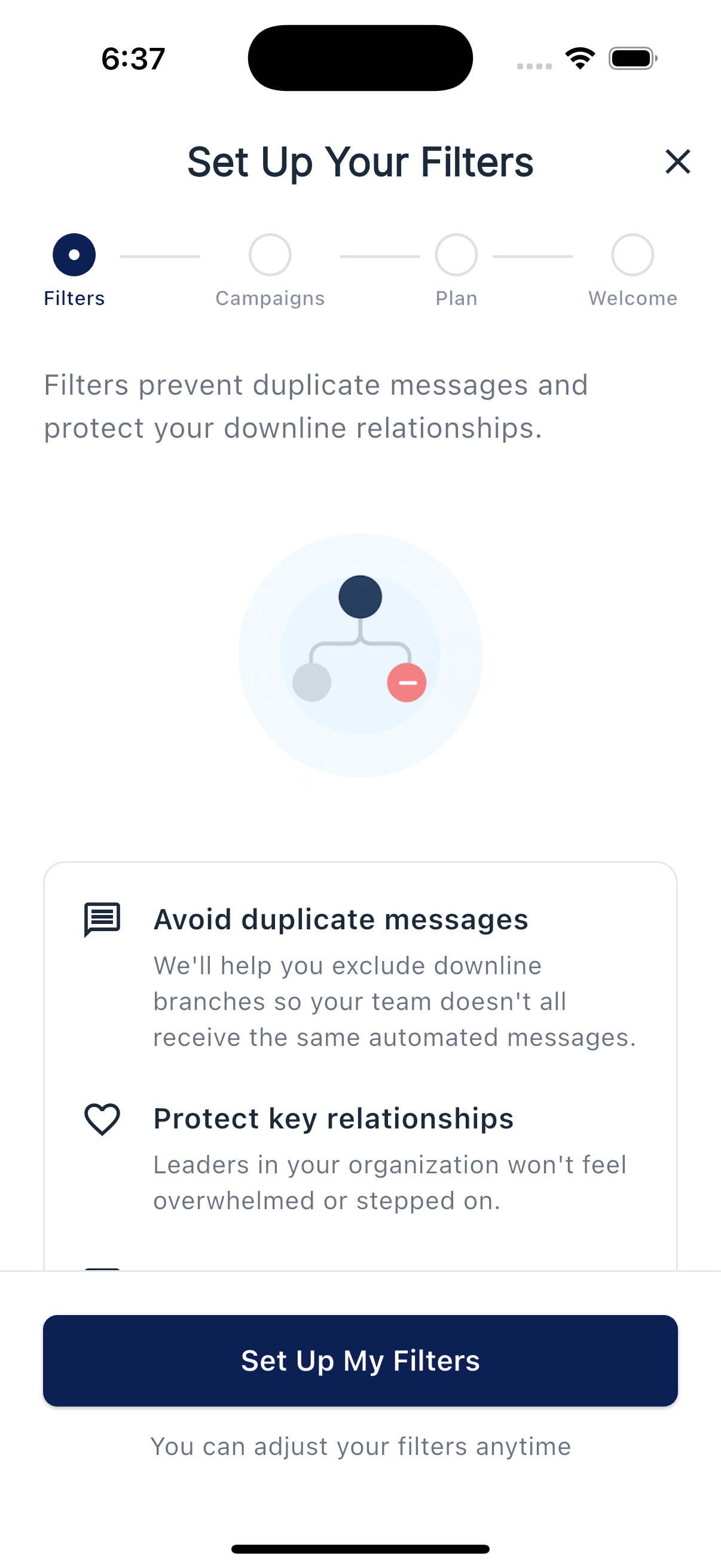
Use filters to exclude a leg supported by another leader, add back a smaller leg, or keep one person in the audience. Skipped contacts do not consume credits for a message that was never submitted to send. Filters are not a guarantee against every overlapping campaign or duplicate message.
Where you set up filters
You first see filters during onboarding:
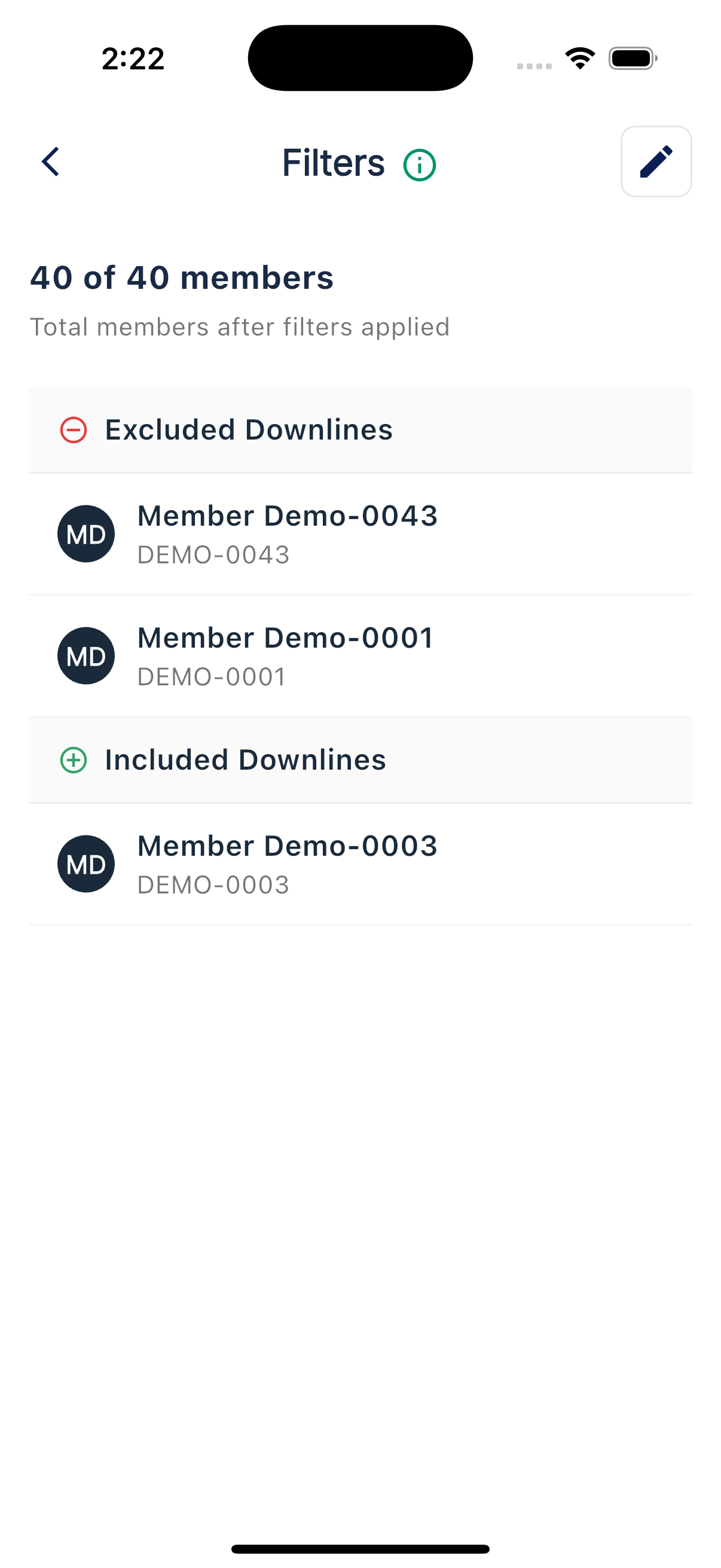
You can also reach filters any time under More, then Filters:
Editing your filters
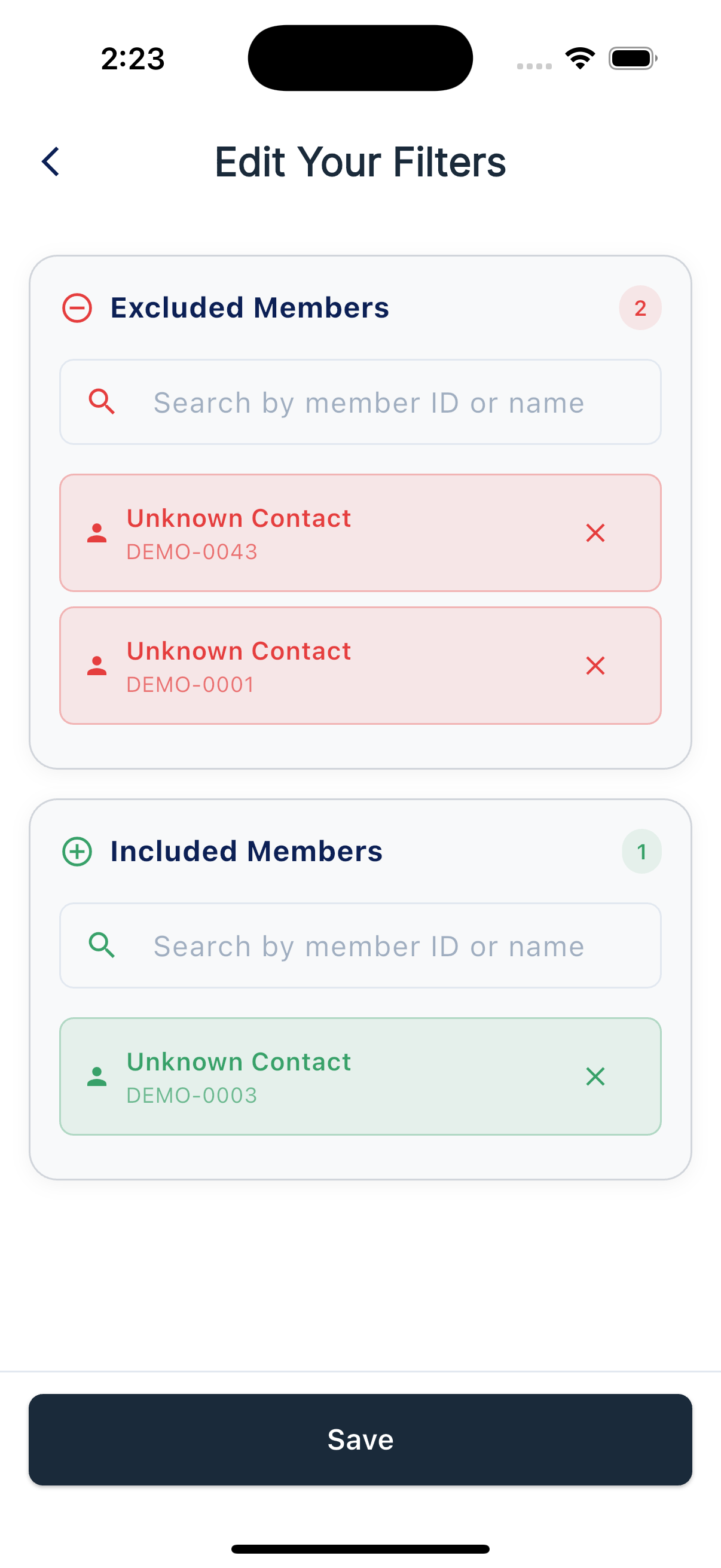
The editor has three sections:
- Excluded Legs removes a member and everyone below them from the audience. Some active Simple Downline accounts may appear here automatically and cannot be removed while active.
- Included Legs adds a whole leg back inside an excluded leg, where allowed.
- Included Members adds back one person without adding their team.
Your downline is included by default. Search by member name or ID to add a leg or person to the appropriate section.
The Keep personally enrolled contacts switch can keep people you enrolled in your audience even when they fall under an excluded leg. Review this setting before saving exclusions.
When filters apply
Filters affect campaign audience selection. For a Custom campaign, the Edit Campaign screen has a Use Exclusions checkbox so you can choose whether to apply exclusions to that campaign. Check the campaign's audience and send preview before turning it on.