Adding and editing contacts
Most of your contacts arrive automatically from your Young Living downline. You can also add people manually when they aren't in your YL organization, edit details to keep records current, and search to jump to anyone in seconds.
Viewing your contacts
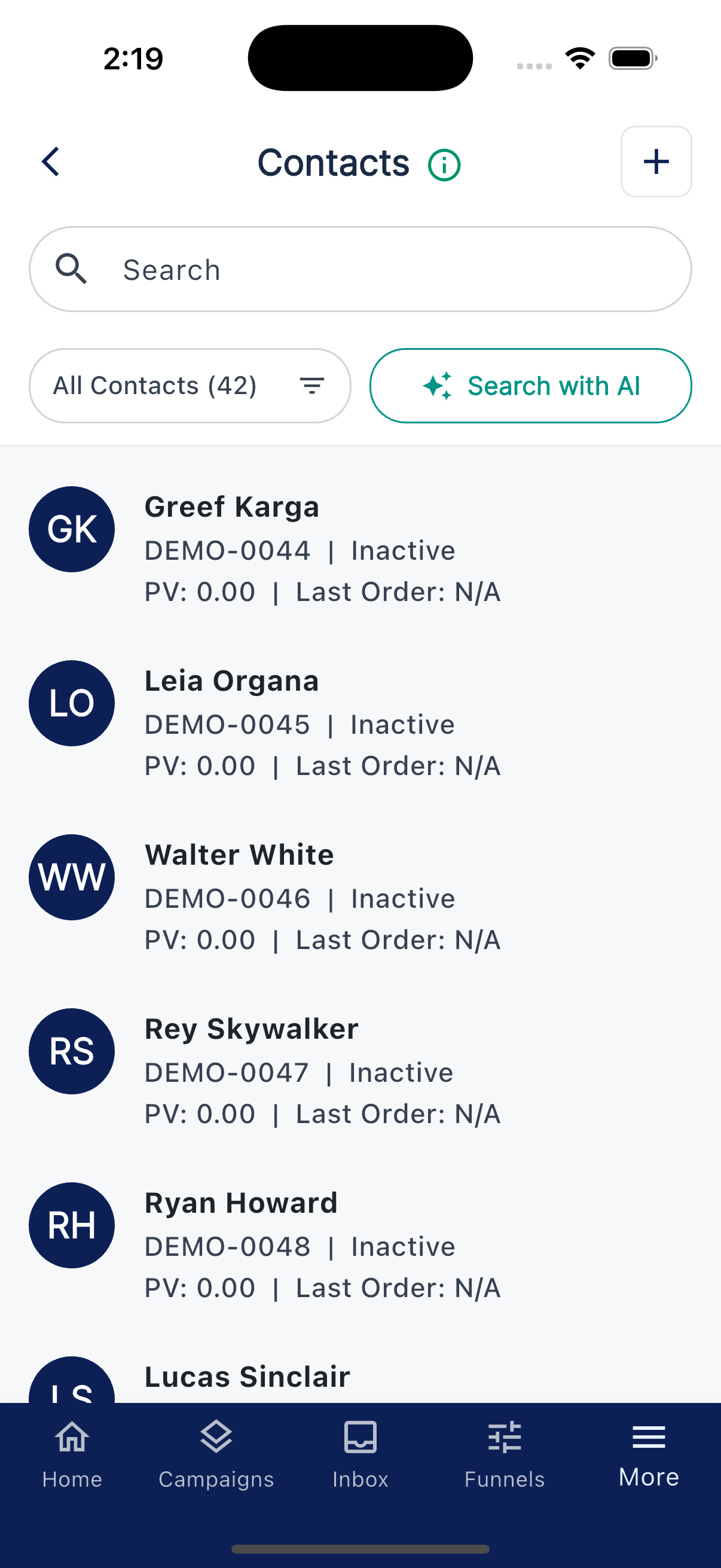
The Contacts list lives under the More tab. By default it focuses on people currently in your downline and contacts you've added to groups. To find former downline members, use the Inactive Members segment. Each row shows the contact's name, then their member ID and type (for example, "DEMO-0044 | Customer"), then their PV and last order. Use search or the segment filter to find someone quickly.
Adding a new contact
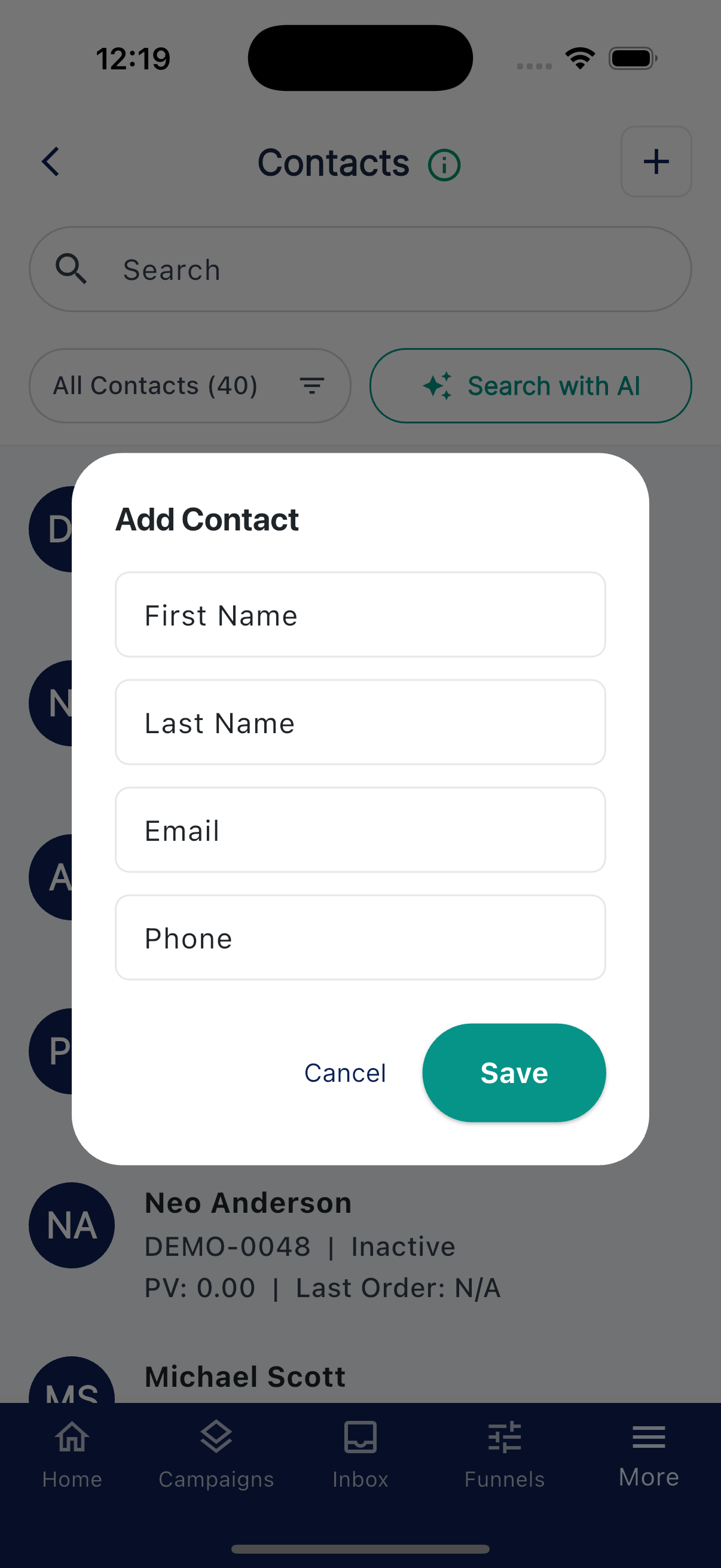
Tap the + in the top right of the Contacts screen to open the Add Contact dialog. Enter a first and last name, then add an email, a phone number, or both. First and last name are required, and you need at least one of email or phone so the app has a way to reach the person. Tap Save to add them.
Use this when someone is a friend, a referral, or a prospect who isn't yet enrolled with Young Living. If the person already has a YL account in your downline, wait for the next sync and they'll appear on their own. Once a contact is saved you can open them to fill in more details.
Viewing contact details
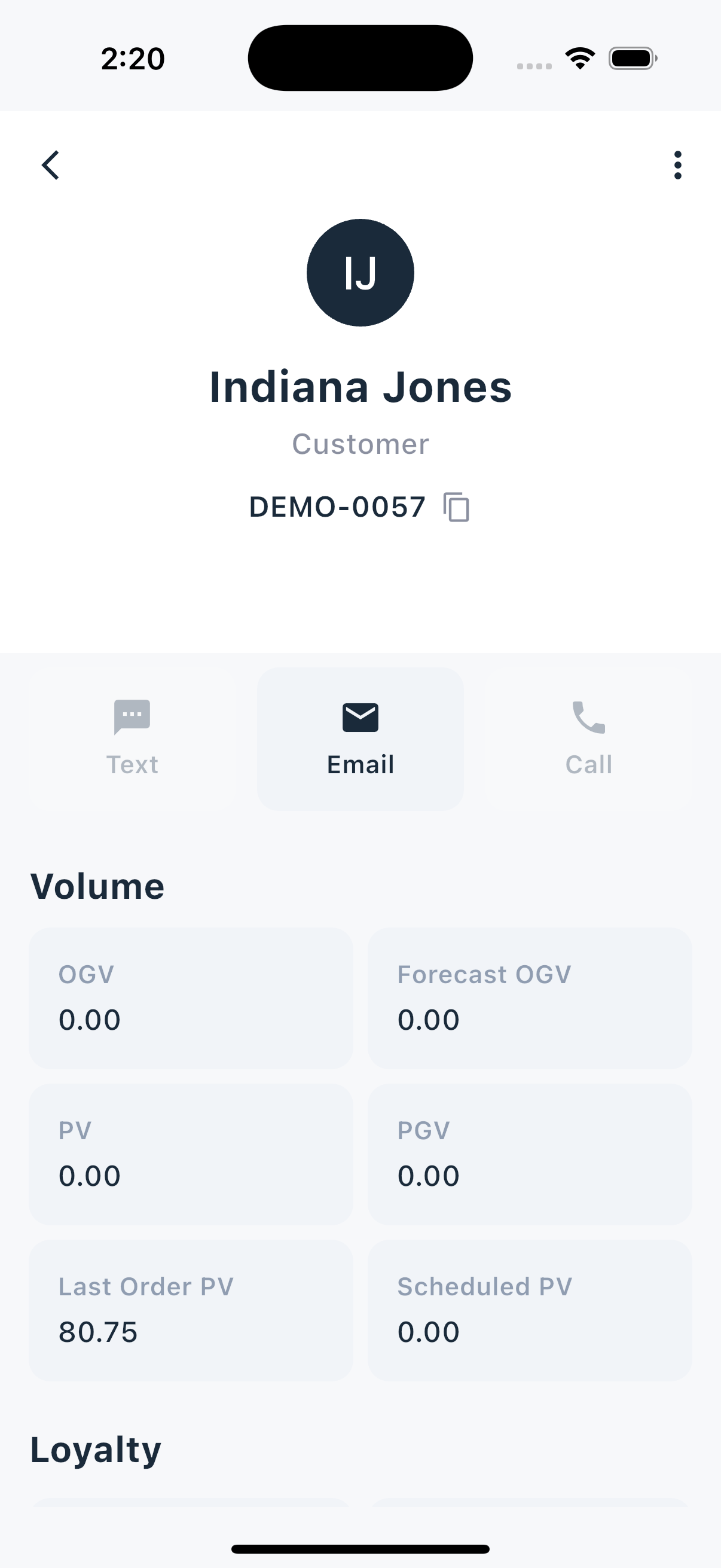
The detail view collects what we know about a person in one place. Across the top you'll find Text, Email, and Call buttons. Below them are sections for Rank, Volume, Tags, Notes, and Legs. Tapping Text or Email opens a conversation with that person so you can reach out directly.
Editing a contact
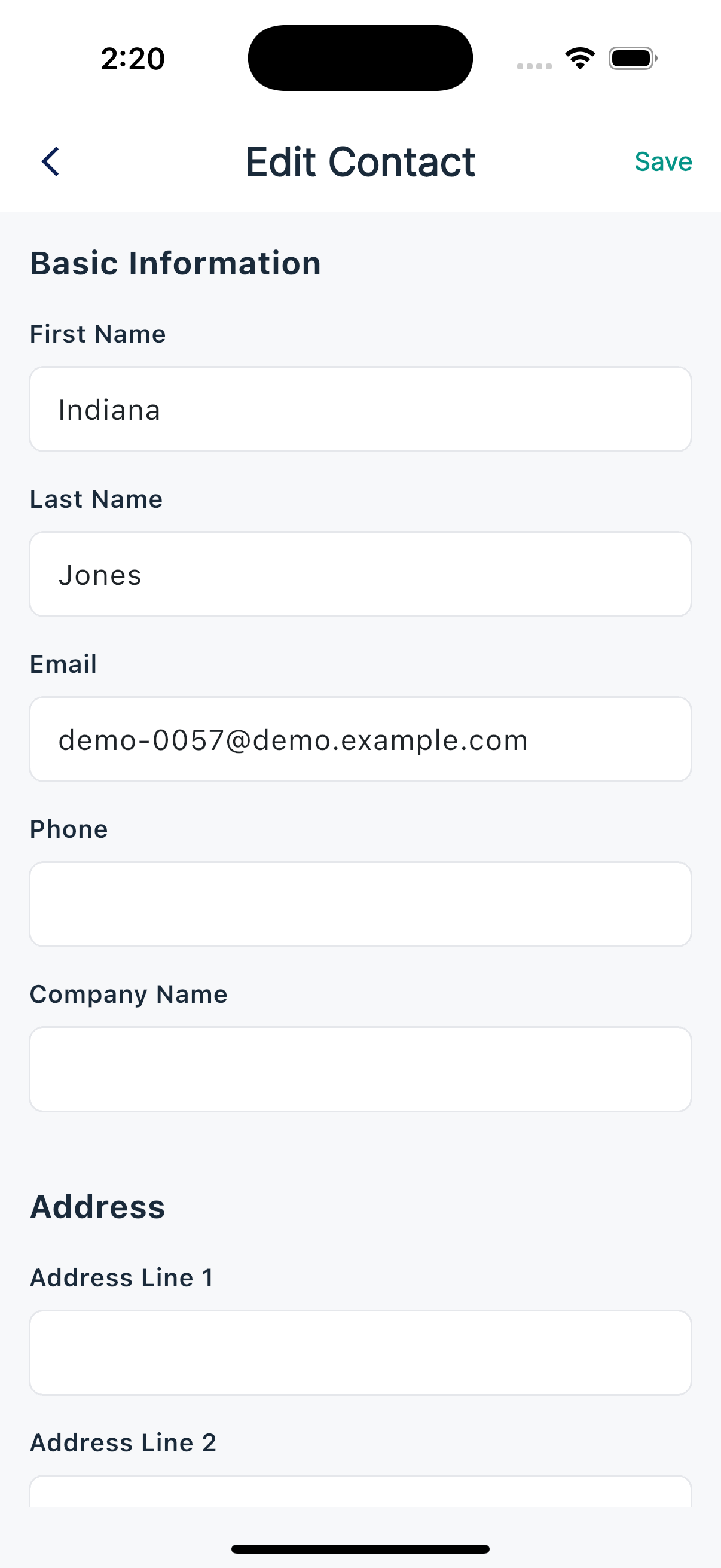
The edit screen has separate First Name, Middle Name, and Last Name fields, plus email, phone, and company name. There's also a Member ID field: on a contact you added yourself it's editable, so you can link them to a member later, but once a contact is linked to a member the field locks and shows "Linked to a member and cannot be changed."
You can change any field on a manually added contact, and your edits stay put. For contacts that came in through the Young Living sync, YL is the source of truth for synced fields like name, email, and phone, so a later sync can update those from YL. Notes, tags, and group membership stick regardless of where the contact came from.
Searching contacts
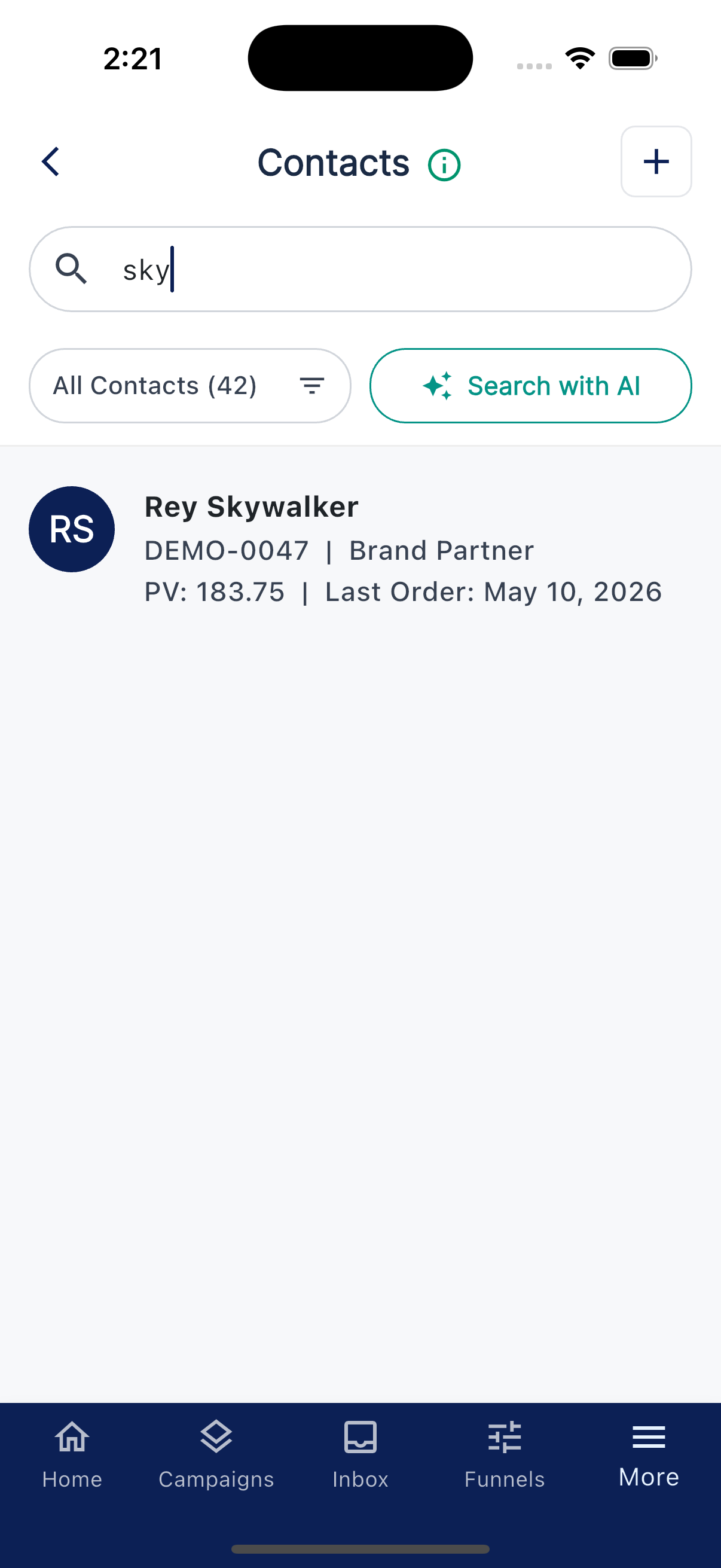
Search looks across names, phone numbers, email addresses, and member IDs. Partial matches work, so typing "jen" pulls up Jennifer, Jenny, and Bjenson.