How contacts sync from Young Living
Once you connect your Young Living account, your customers and team members sync over automatically, no manual uploads or CSV headaches. Simple Downline also organizes them into meaningful groups so your campaigns know who to send to.
Where to find your contacts
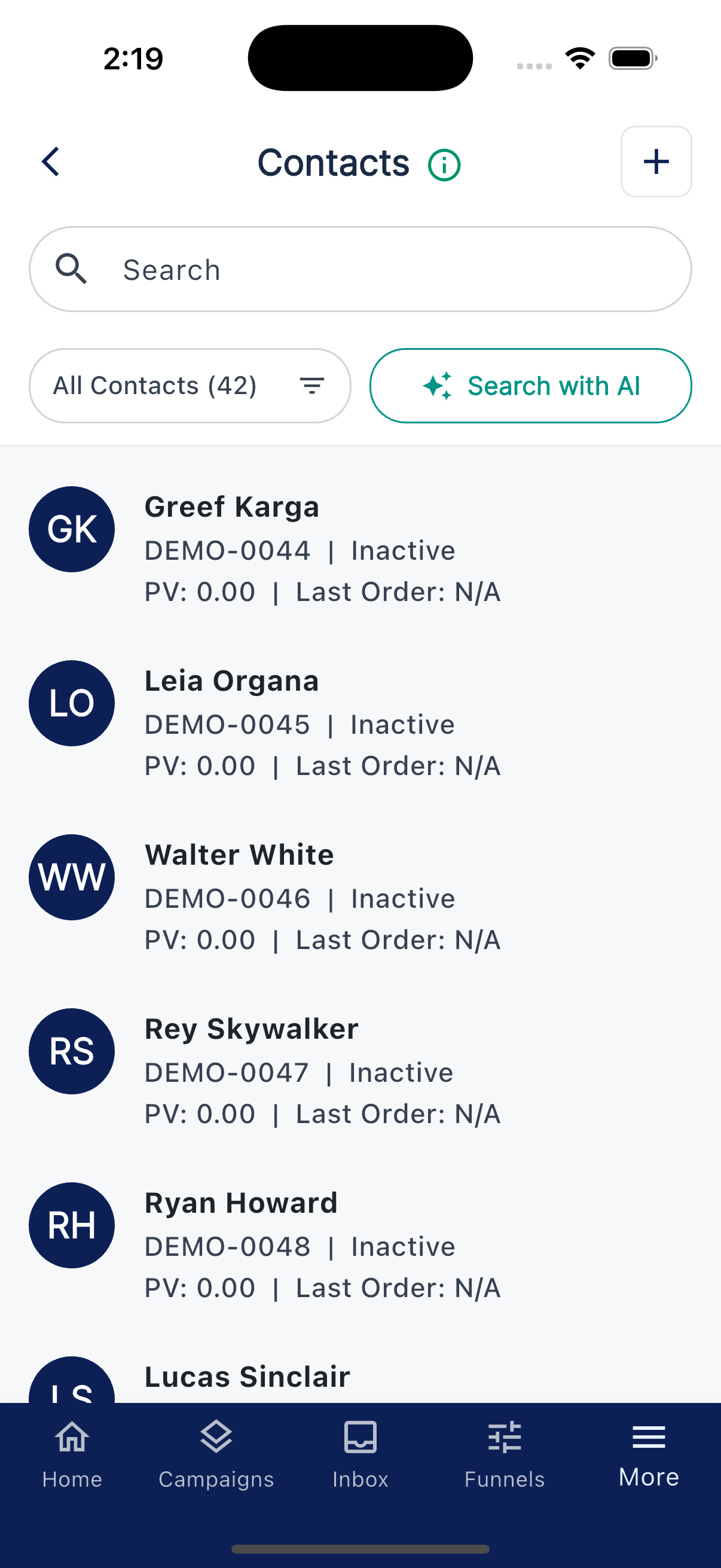
Tap More at the bottom, then tap Contacts. (On the web app, Contacts is in the left sidebar.)
The default list focuses on people currently in your downline and contacts you've added to groups. It may not show former downline members. Use the Inactive Members segment to find people who are no longer in your current downline. Tap a contact to open their details, including name, phone, email, member ID, rank, address, birthday, and any notes you've added.
How they get organized
Simple Downline doesn't just list everyone alphabetically. It groups people into segments that make follow-up easier. Examples include New Customers, Inactive Customers, Loyalty Members, and Brand Partners.
These segments are what your Smart campaigns target by default. You can browse them under More → Groups, in the Campaign tab.
Searching with plain English
At the top of the Contacts screen there's a search bar for finding someone fast.
Below that you'll see Search with AI. Type something like "loyalty members who haven't ordered in 60 days" and the list narrows down. No filters to configure, just plain English. There's a help link with Filter examples if you want ideas to start from.
Once your AI search returns the right people, tap Save to Group to turn that result into a reusable group you can message anytime.
Adding a contact yourself
Anyone who isn't in your Young Living downline (friends, prospects, leads from outside the YL world) can be added by hand. Tap the + in the top corner (tooltip "Add Contact") and fill in their info. Manual contacts behave just like synced ones.
Keeping things fresh
The app keeps your list up to date in the background. New enrollments appear within a day or two. Edits you make in Young Living (a phone number update, an address change) flow over too.
On the Home tab you'll see a small Last synced timestamp so you always know how fresh your list is. If something looks stale, you'll see a banner saying "Your data needs to be refreshed" with a Refresh Now button.
Someone's missing, what do I do?
A few common reasons:
- They aren't in your Young Living downline. YL only shares members enrolled under you or in your downline. People enrolled under a different sponsor won't appear.
- They're a brand-new enrollment. Give it 24 hours.
- The list looks stale. Tap Refresh Now on the Home tab.
If they're still missing after a refresh, the empty Contacts screen will show "No contacts found". Send us a note and we'll help.