Refreshing your Young Living connection
Your Young Living session doesn't last forever. Every so often, Simple Downline asks you to reconnect so your contacts and team data keep syncing.
When you'll see this
Simple Downline checks whether your Young Living connection needs refreshing. In the iPhone or Android app, a Stay Up to Date prompt offers Let's Go to reconnect or Later to dismiss it for the current app session. On the web app, the prompt directs you to use the mobile app to sync.
Completing the refresh keeps your downline data current, so it's best to finish it when you see the prompt.
Step 1: Confirm consent
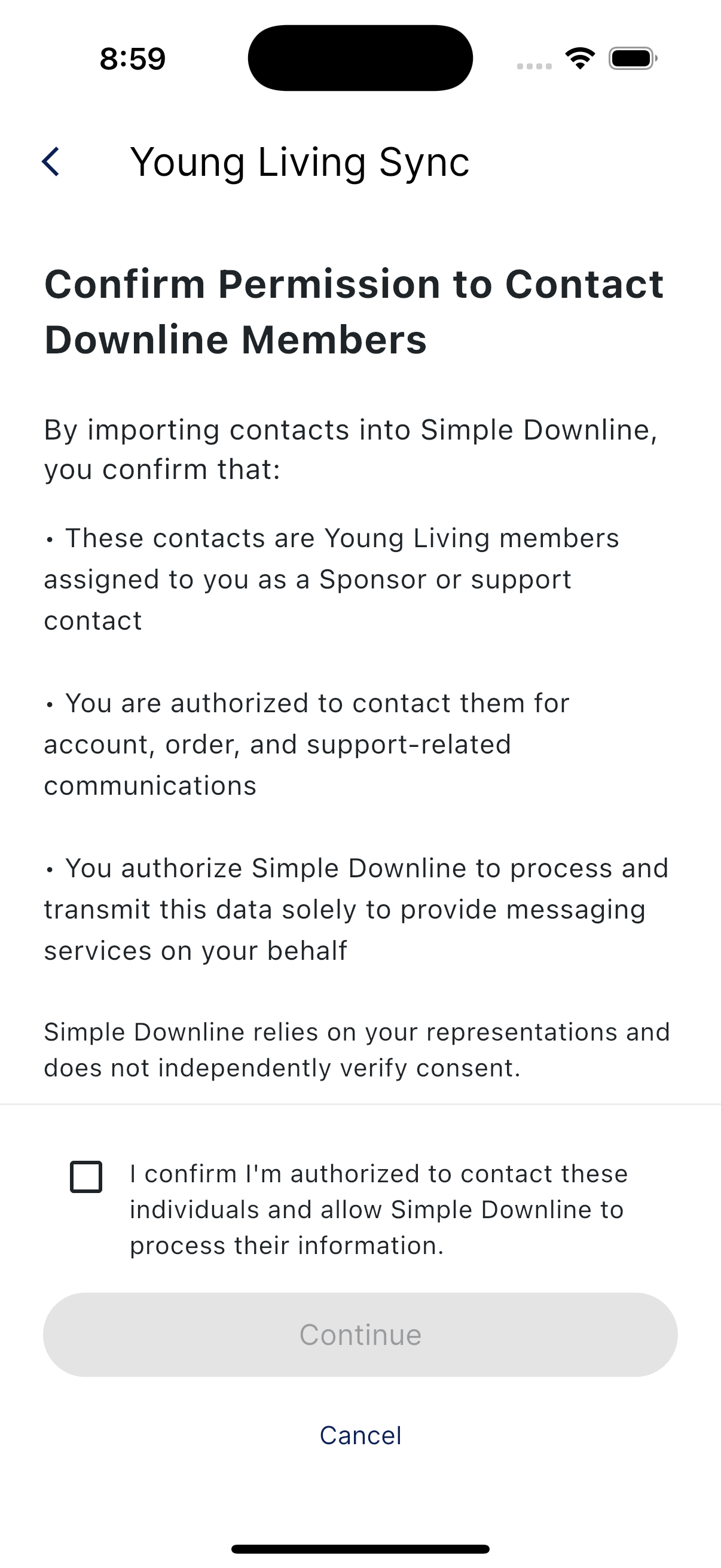
On mobile, the refresh starts with a permission recap. You confirm three things:
- The contacts you're messaging are Young Living members assigned to you as a sponsor or support contact.
- You're authorized to contact them about their accounts, orders, and support.
- Simple Downline processes this data only to send messages on your behalf.
Tick the checkbox at the bottom. The Continue button activates once it's checked.
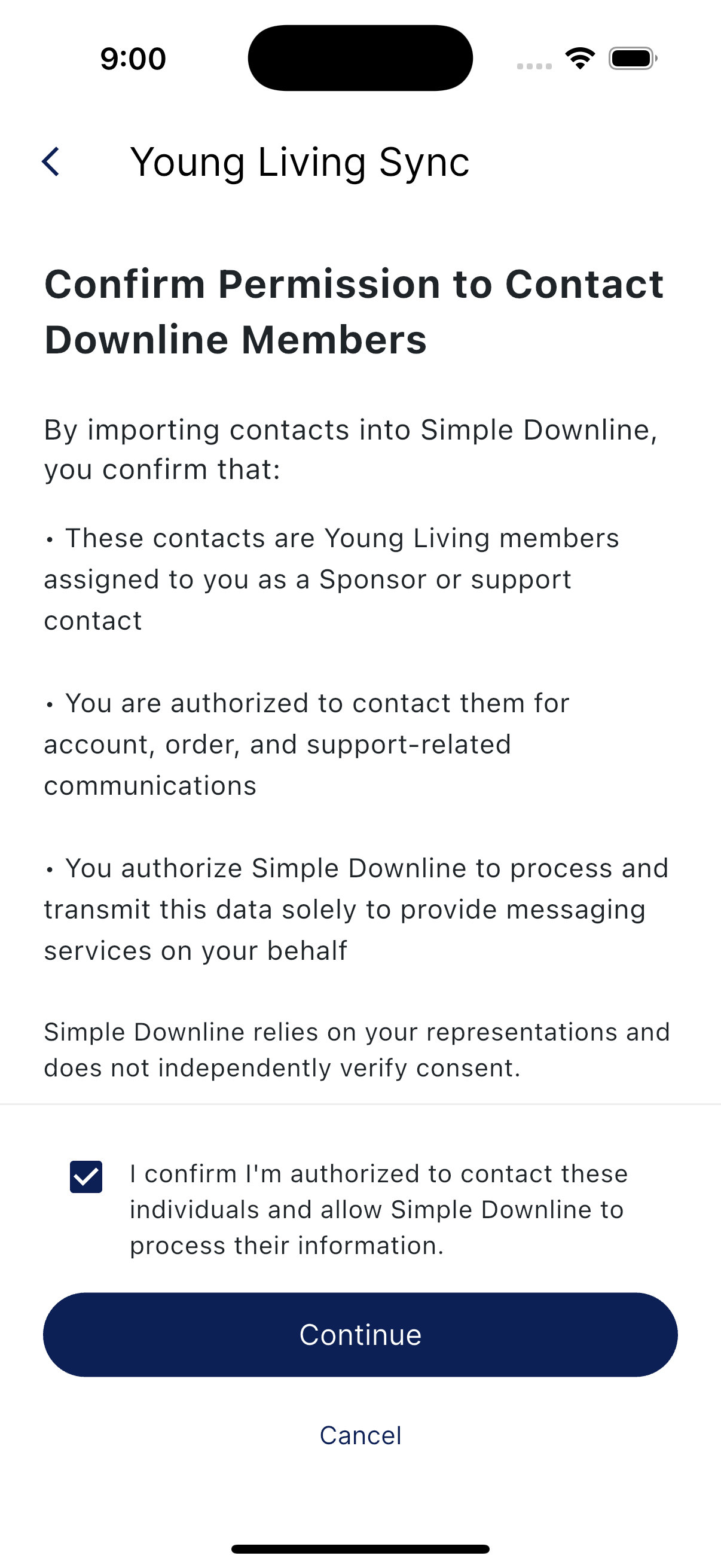
Step 2: Sign in to Young Living
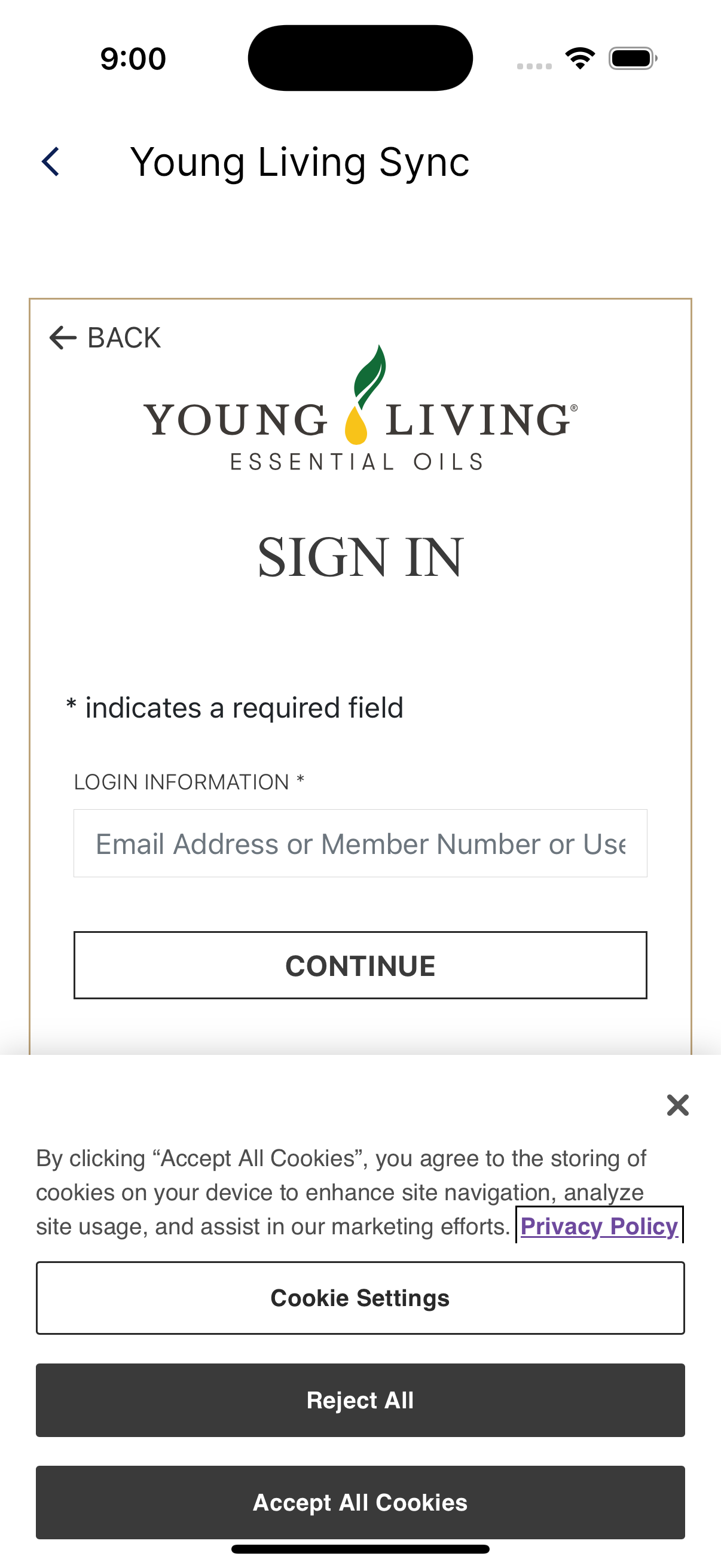
Enter the email address, member number, or username you use with Young Living, then tap Continue and follow its password and verification prompts. The screens may vary depending on Young Living's sign-in flow.
Step 3: Success
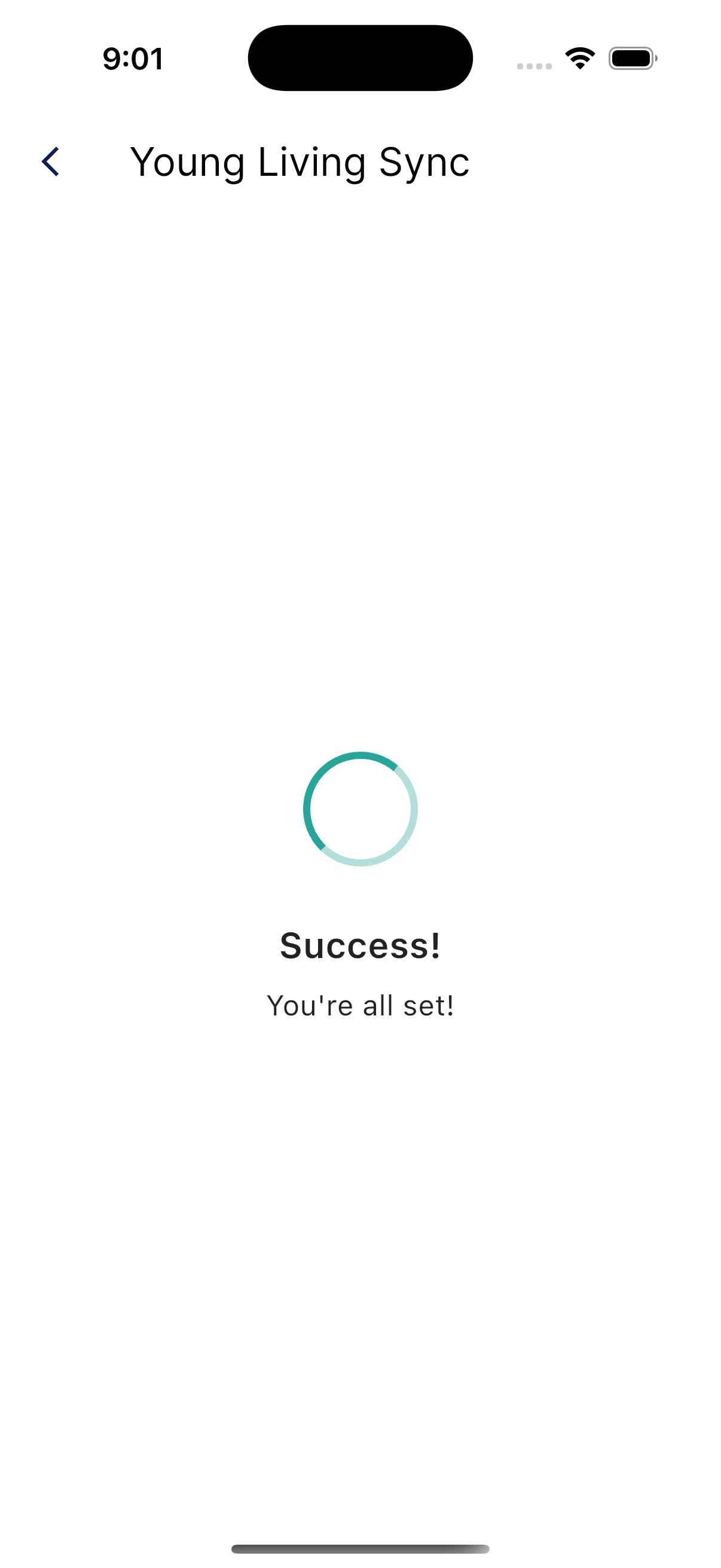
After a successful connection, the refresh screen closes and Simple Downline can continue syncing your Young Living data. If contacts still look out of date, check the sync status or contact support.
What if you tap "Later"?
Tapping Later closes the prompt for this app session. You may be prompted again in a later session. Reconnect when you can so your downline data can keep syncing.