Logging in to Simple Downline
You sign in to Simple Downline with your Young Living account. There's no separate password to remember. The app uses the same login you already have at YoungLiving.com.
The first screen you see
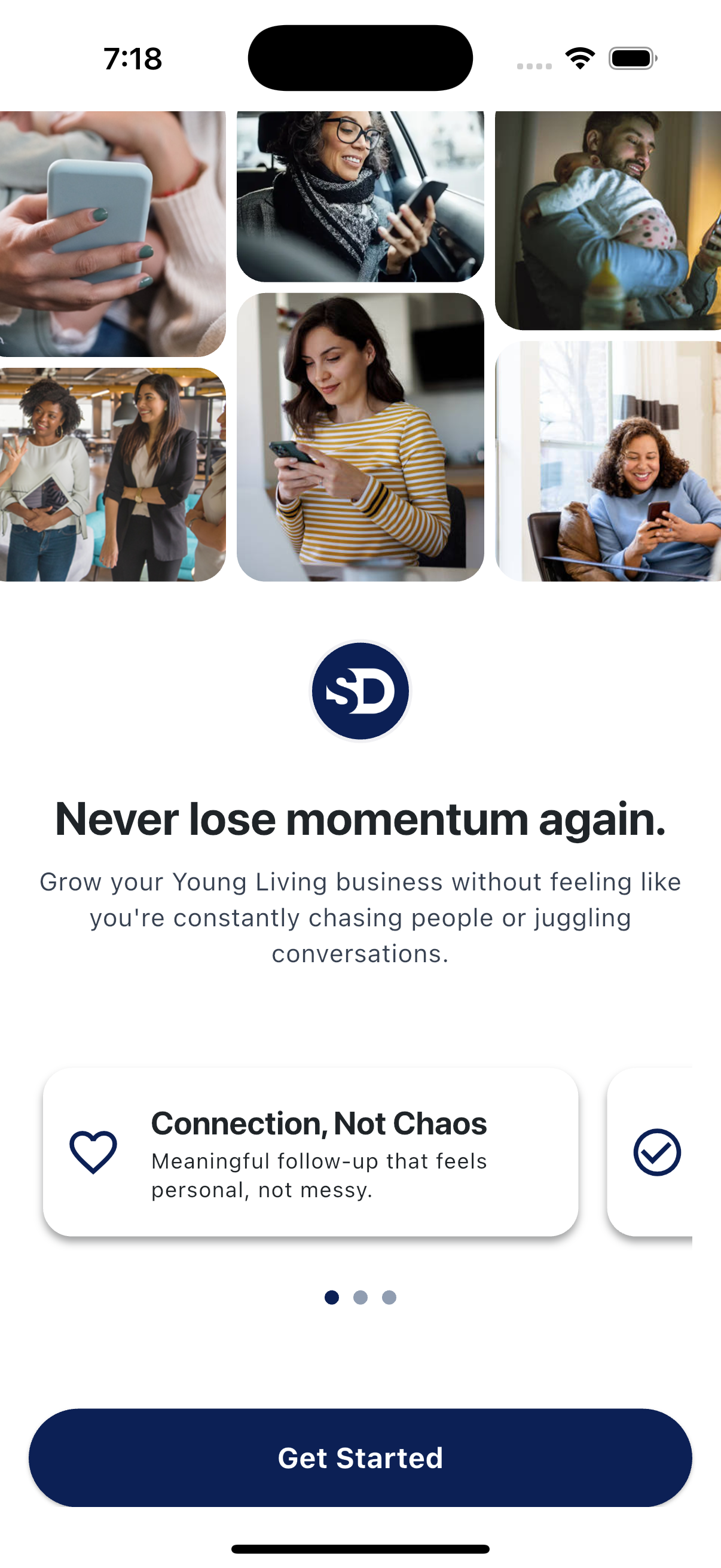
When you open the app the first time, you land on the intro screen. Tap Get Started to begin.
Connecting your Young Living account
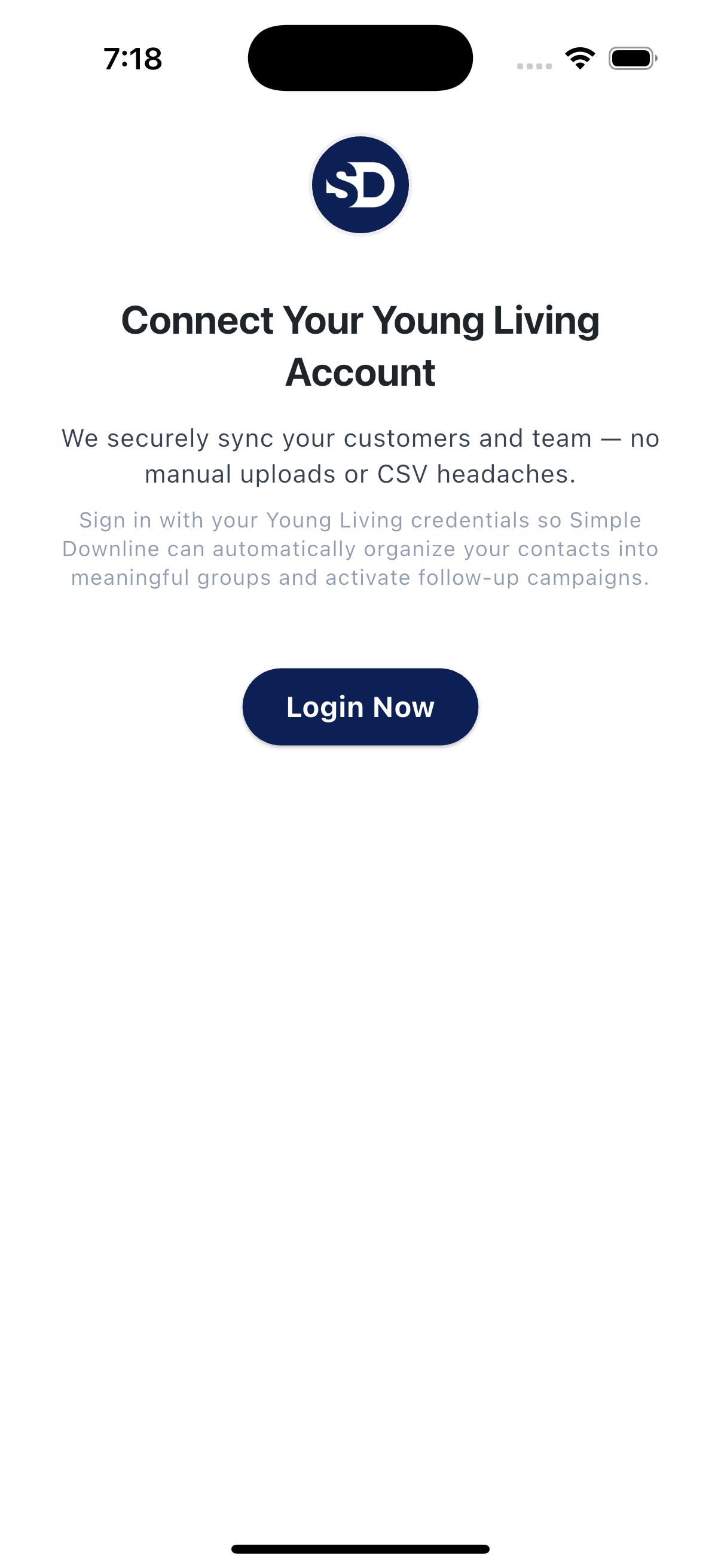
On the Connect Your Young Living Account screen, tap Login Now.
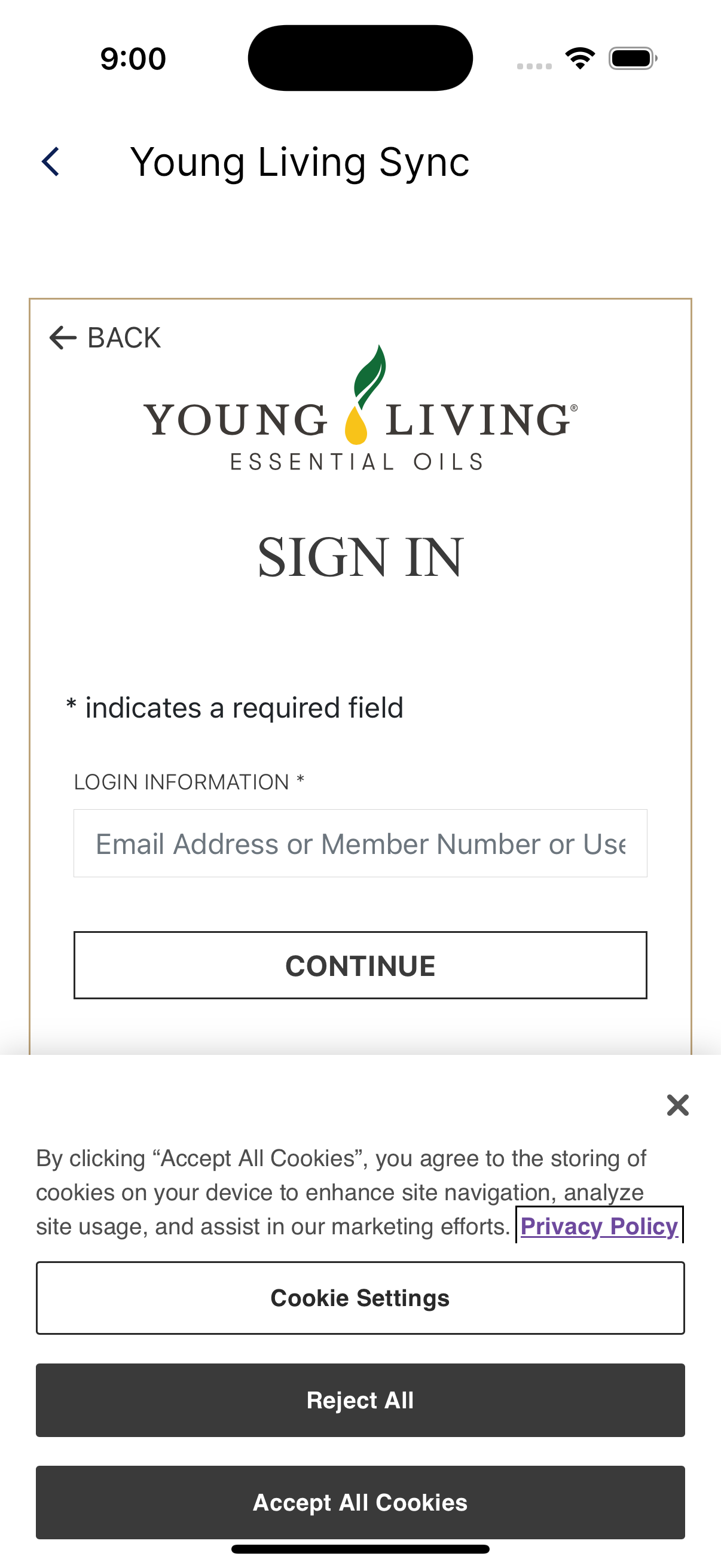
The button opens Young Living's sign-in. Enter the email address, member number, or username you use with Young Living and tap Continue. Then follow its prompts for your password and any requested verification.
If Young Living asks for a verification code or another check, complete that step in its sign-in flow.
Verifying your profile
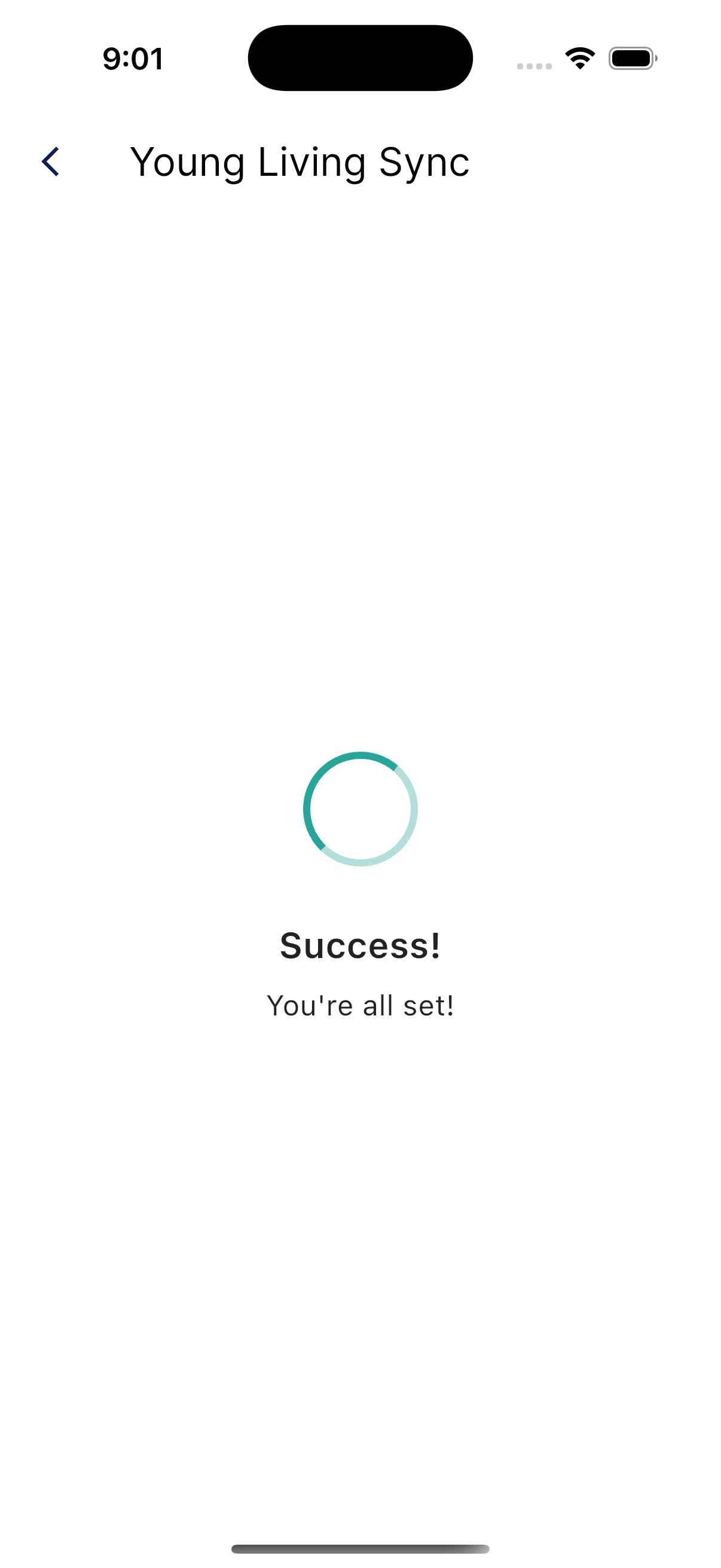
Once you're signed in, we'll ask you to confirm a few details from your Young Living profile. This is a one-time step that makes sure the right name, email, and phone number are on file before you start sending messages.
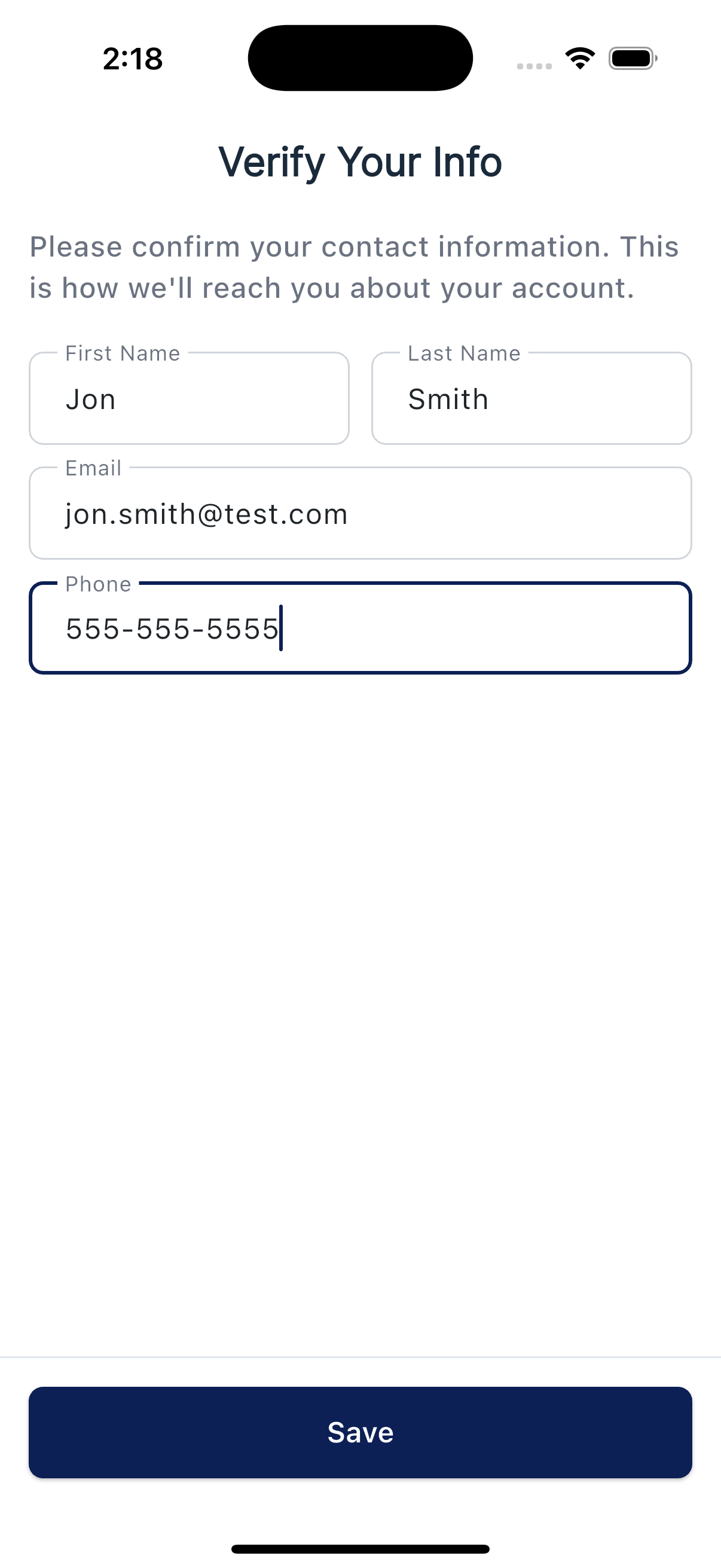
After you verify, the app takes you straight into the rest of setup. The next step is your registration info, where you confirm a few business details. You won't land on a home screen first, and there are no setup banners to chase.
Signing out
To sign out, open My Account from the More menu and tap Sign Out at the bottom. Signing out clears your session on this device; your Young Living account is unaffected.