Finishing setup after approval
After your SMS registration is approved, the home screen shows a Finish Setup banner. Tapping it kicks off the post-registration walkthrough that gets you ready to actually send.
The Finish Setup explainer
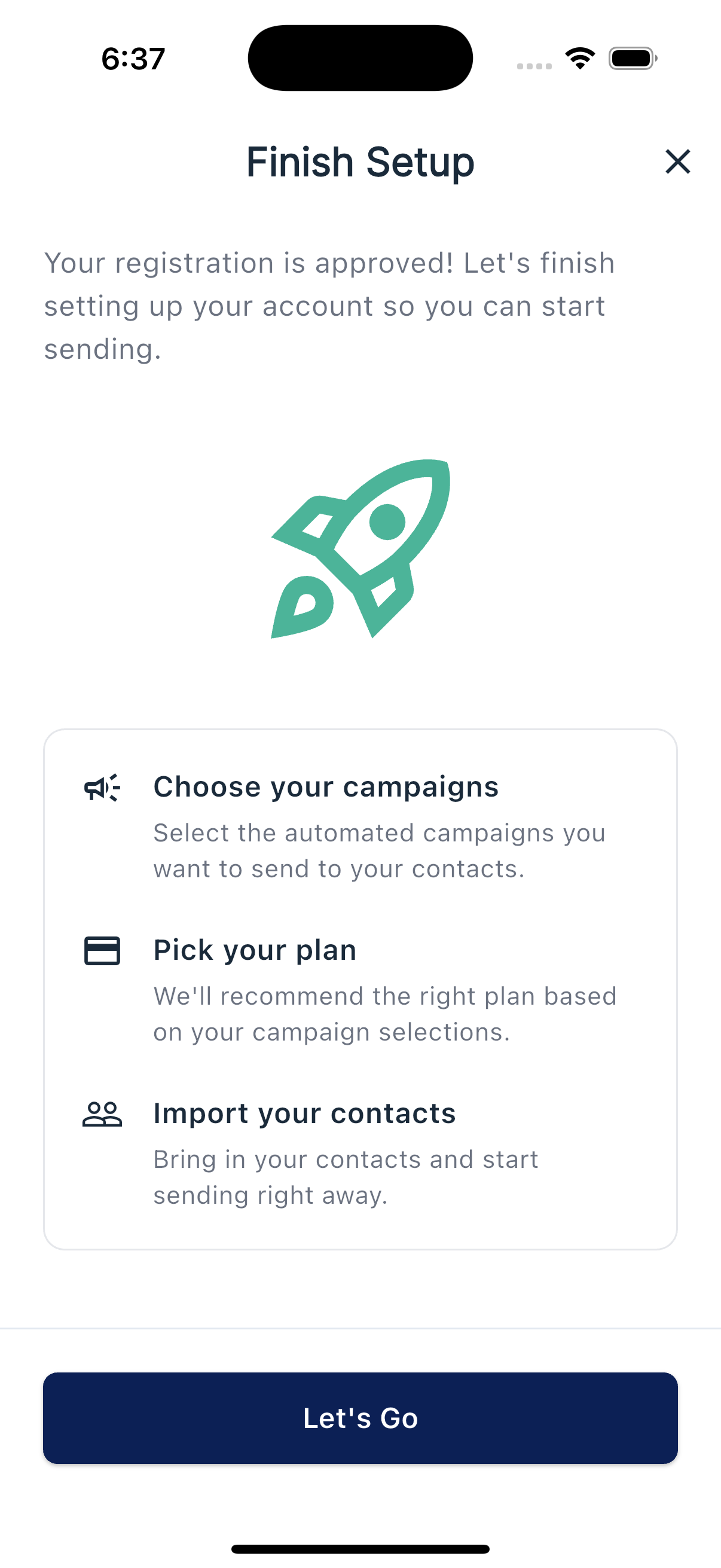
The explainer previews three things you'll handle: Choose your campaigns, Pick your plan, and Import your contacts. Tap Let's Go to begin. Setup picks up where you left off if you step away and come back, so nothing you do here is wasted.
The post-registration steps
The walkthrough runs in this order:
- Filters protect key relationships and prevent duplicates. Using filters
- Campaigns are the automated message sequences you want active. Smart, Drip, and Custom campaigns
- Import your contacts brings in your existing contacts from a CSV export, or you can skip it. Importing contacts during setup
- Welcome message is the first thing your downline gets from you. Writing your welcome message
- Plan is the monthly credit tier that matches your sending volume. Plans and credits
When you're done
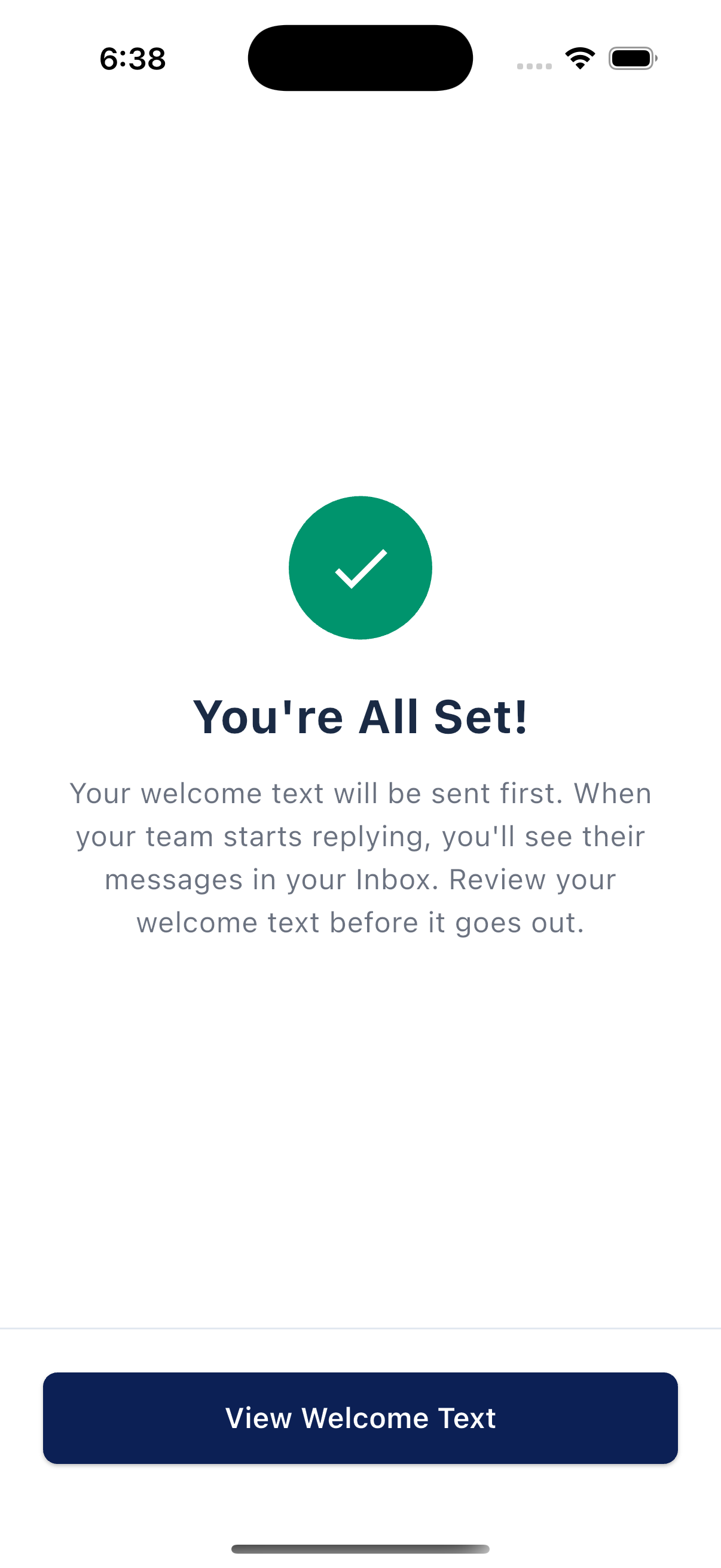
The final screen says You're All Set! and explains that your welcome text is sent first, with replies showing up in your Inbox. Tap View Welcome Text to review your welcome text before it goes out. Your welcome text is scheduled to go out the next day.
What to read next
Last updated May 22, 2026Was this helpful?